
Columns help you organize project information based on the workflow you’re working on, such as specification, budgeting, procurement, or approvals.
Before You Start
You need the right permissions to add or manage columns in Fohlio.
If you don’t see the column options described below, contact your workspace admin so they can review your permissions.
🧭 Add an Existing Column to a Phase
- Go to your Project Sheets.
- Hover over the three dots menu on any column header.
- Select either:
- Insert one column to the left
- Insert one column to the right
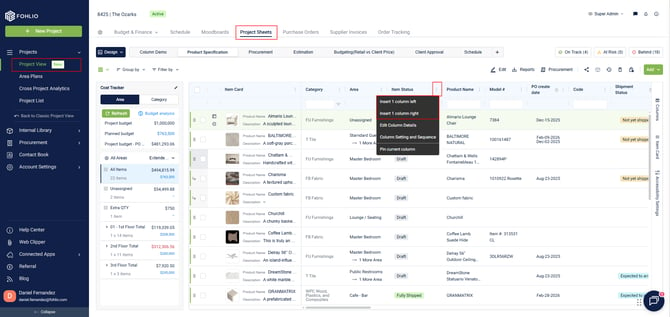
- A window will open with the full list of columns available in Fohlio.
- Search for or select the column you want to add.
- Click on the column.
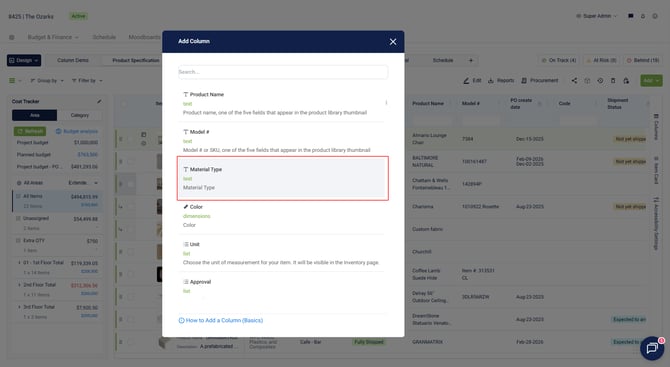
- Click Add.
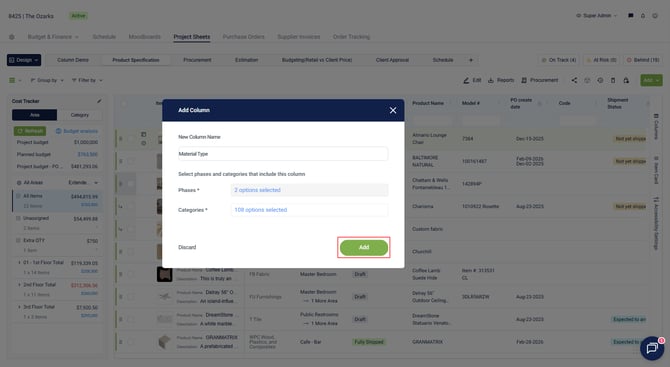
The column will be added to the current phase right away.
🆕 Create and Add a New Column
If the column you need doesn’t exist yet, you can create it during the same process.
- Hover over the three dots menu on any column header.
- Select Insert one column to the left or Insert one column to the right.
- Type the name of the new column.
- If no matching column is found, click Create Column.
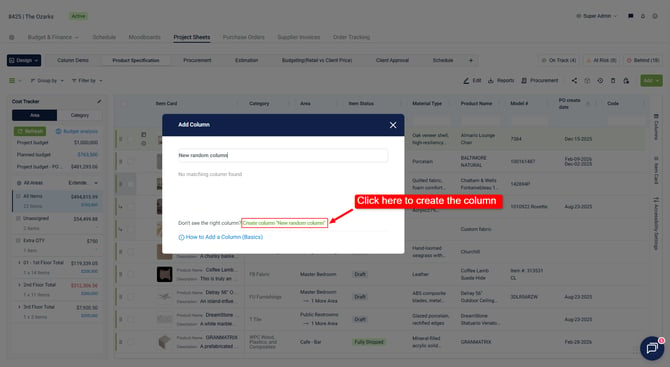
- Confirm the new column name.
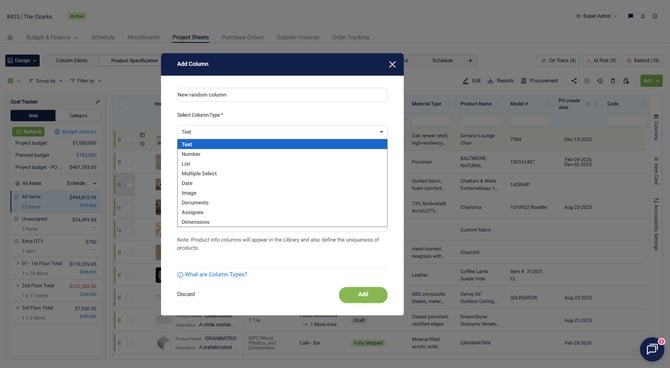
- Select the Column Type.
Column types include:
- Text
- Number
- List
- Multi-Select
- Date
- Image
- Documents
- Assignee
- Dimensions
Pro tip 💡: If you’re not sure which column type to choose, review the Column Types article before creating the column. Column types cannot be changed after creation.
🏷️ Choose the Column Property
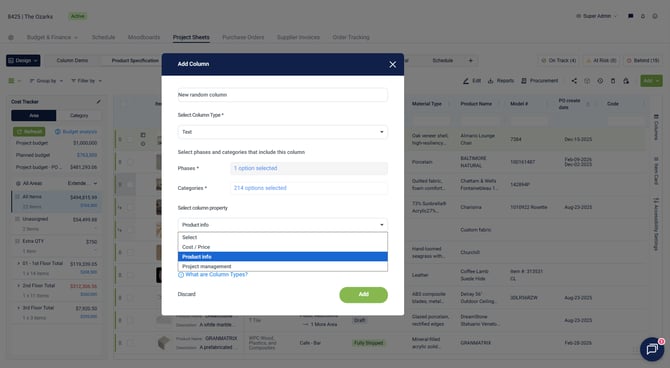
After selecting the column type, choose the column property. This tells Fohlio how the column should behave across projects and modules.
Cost/Price
Use this for pricing or budgeting-related columns.
Examples:
- Unit Price
- Total Cost
- Budget Total
Product Info
Use this for specification-related information that stays the same for the same item across projects.
Examples:
- Model Number
- Dimensions
- Material
- Finish
Project Management
Use this for information that may change from project to project.
Examples:
- Approval Status
- Installation Status
- Notes
- Assigned Team Member
✅ Finish Adding the Column
Once you’ve selected the column type and property:
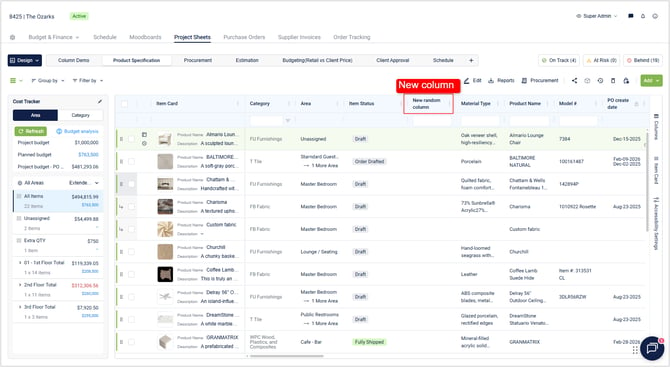
- Click Add.
- The new column will appear in the current phase.
We hope this article was helpful, please reach us via Live Help if you still need assistance.