
Choosing the right type helps keep your project data clean, easier to update, and ready for reports, budgets, and team workflow
Why Column Types Matter
Each column type is built for a specific kind of information. For example, some columns are best for text, others for prices, dates, images, files, or task assignments.
Important: Column types cannot be changed after the column is created, so make sure to choose the right one from the start.
We recommend using Fohlio’s default columns whenever possible. They are already set up for common workflows and reports.
📝 Text
Use Text columns for general written information.
Common examples:
- Product names
- Notes
- Specifications
- Descriptions
This is the most flexible column type and works well when the information does not need calculations or dropdown options.
🔢 Number
Use Number columns for values that need calculations.
Common examples:
- Prices
- Percentages
- Quantities
- Totals
Number columns can also use formulas. Start with an equal sign (=) to calculate values automatically, such as markups, client prices, totals, or budgets.
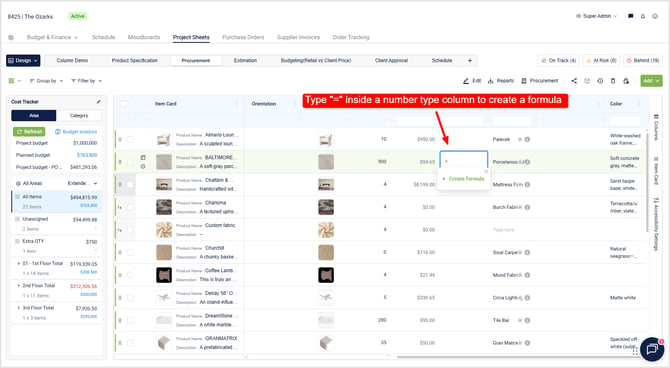
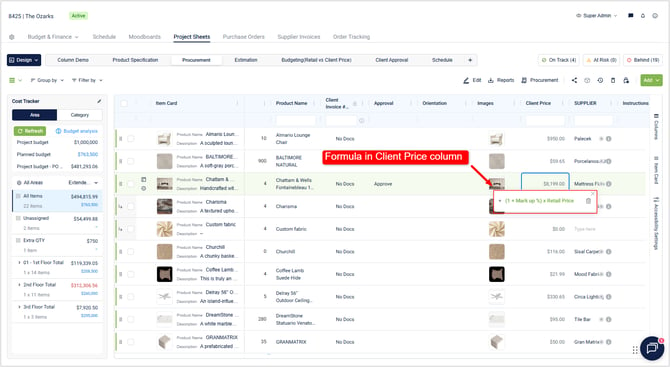
Pro tip 💡: Use Number columns for pricing only when they are meant to support cost, budget, or calculation workflows.
📏 Dimensions
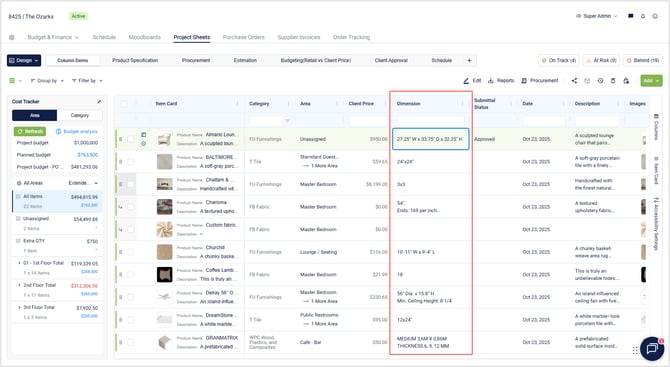
Use Dimensions columns for product sizing or measurement details.
Examples:
- Width x Height
- Diameter
- Area measurements
- Product size notes
This type can include both numbers and text.
📋 List
Use List columns when users should select one option from a dropdown.
Common examples:
- Approval Status
- Product Status
- Procurement Stage
- Priority
When creating a List column, add the options you want users to choose from.
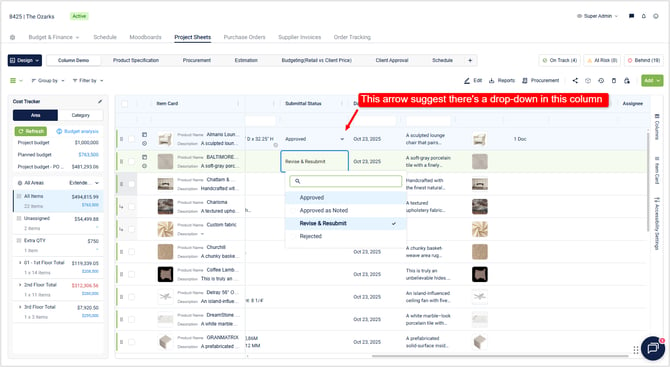
If you click into the field, Fohlio gives you a menu of options. When it comes to Submittal Action for this project, the product can only be Approved, Approved as Noted, Revise & Resubmit, and Rejected. That’s it.
When you create a List type column, you’ll see a menu like this:

You can update the options later from Column Settings.
Note: Editing, renaming, or deleting List options affects every project where that column is used.
🎨 Auto-Highlight for List Columns
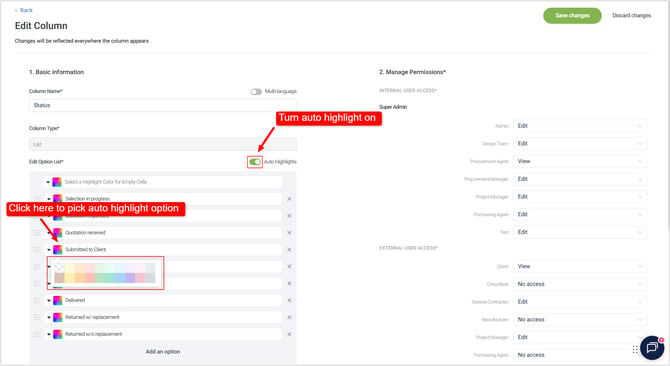
List columns can use Auto-Highlight to assign colors to each option.
This is especially helpful for status columns because users can quickly scan the sheet and understand what needs attention.
Example:
- Approved → Green
- Rejected → Red
- Pending → Yellow
📅 Date
It takes dates! What else is there to say? It looks like this on your Project Sheet: 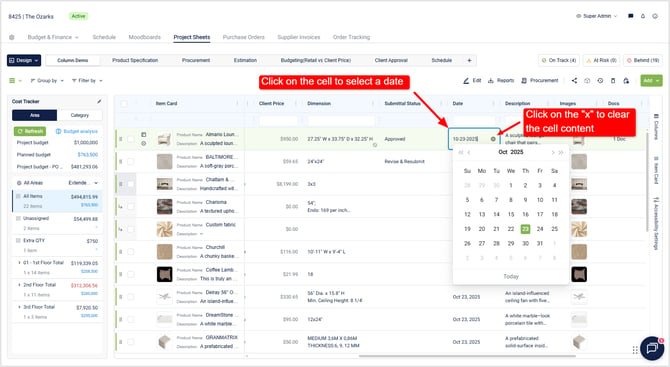
🖼️ Image
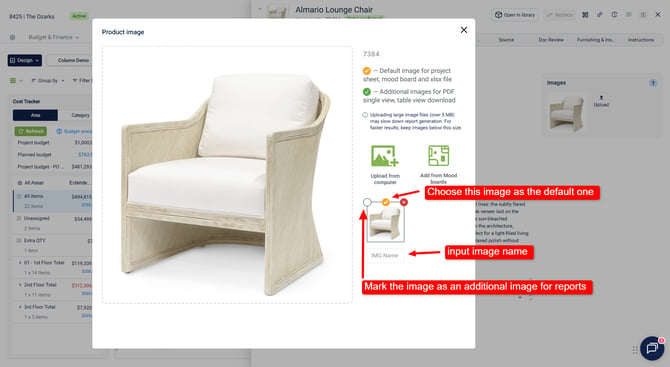
Use Image columns to store and display product images.
You can:
- Upload multiple images
- Rename images
- Choose a default image
- Select additional images for reports
The yellow marker indicates the default image.
The green marker indicates additional images used in selected reports, such as the PDF Single Product Presentation and Table View Reports.
📎 Document
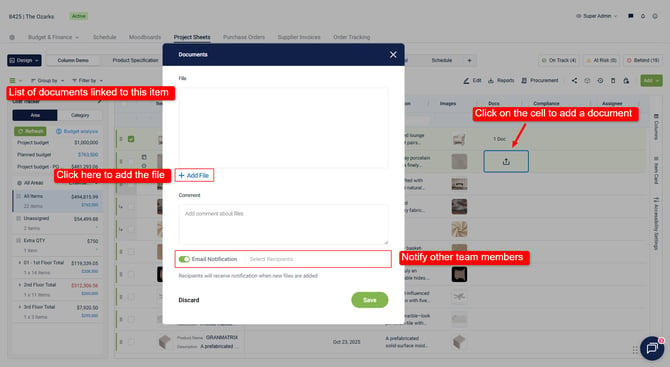
Use Document columns to store files related to an item.
Common examples:
- PDFs
- Word documents
- CAD files
- DWG files
- Installation manuals
- Technical sheets
You can also add notes to give context to each document.
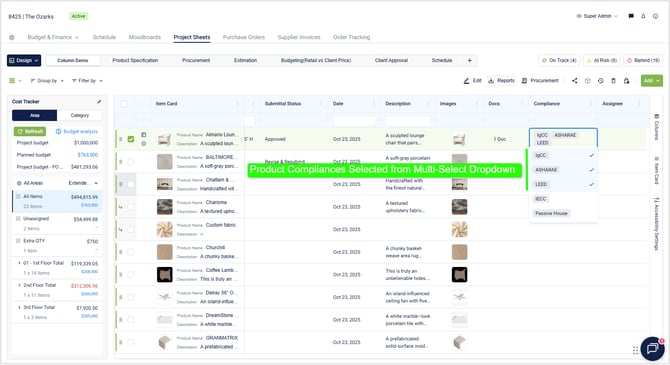
☑️ Multi-Select
Use Multi-Select columns when users may need to select more than one option.
Common examples:
- Certifications
- Compliance standards
- Product attributes
- Material tags
For example, one product could be both ASHRAE compliant and Passive House compliant.
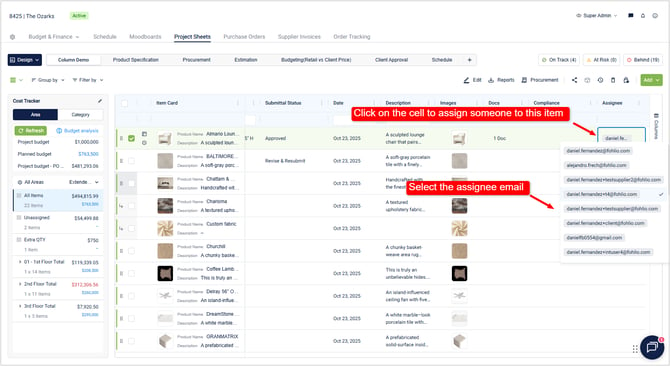
👤 Assignee
Use Assignee columns to assign a person responsible for a task or next step.
When setting up the column, you can choose which user roles are available for selection.
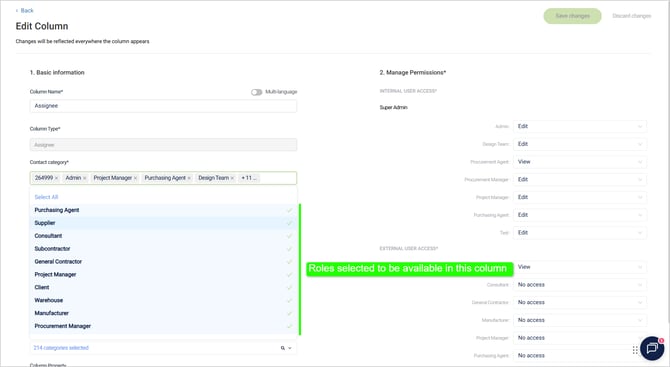
Pro tip 💡: User roles can be managed from your workspace settings.
🔄 Synced Columns
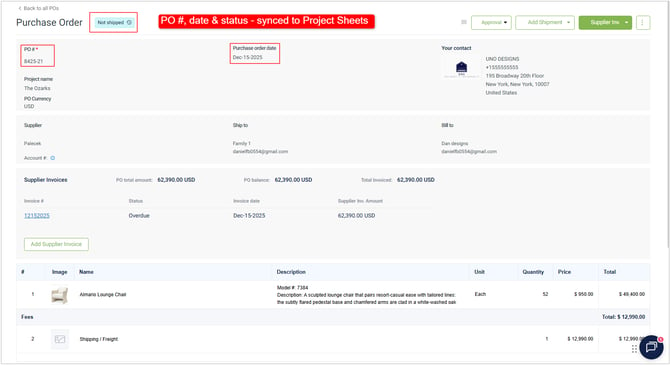
Some columns in Fohlio behave differently from regular custom columns. These are synced columns, which means their values are automatically updated based on activity in other Fohlio modules.
For example, when an item is added to a Purchase Order, Fohlio can automatically populate PO-related columns, such as:
- Purchase Order # / Status
- PO Create Date
You may also see order tracking related synced columns, which update when a shipment is created:
- Estimated Ship Date
- Estimated Delivery Date
These values come from actions taken in connected modules like Procurement or Order Tracking, so they are not manually updated the same way regular columns are.
How to Identify Synced Columns
Synced columns usually have visual indicators that help you recognize them:
- A lock icon next to the column name
- A tooltip advicing “Synced from PO” when hovering over the column
- Values that update automatically after related actions are completed in another module
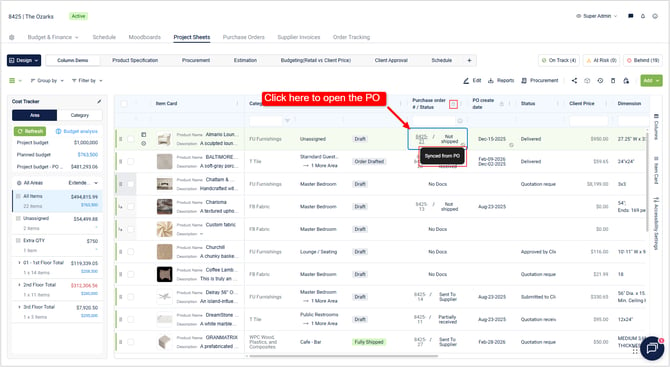
Why Synced Columns Matter
Synced columns help keep information consistent across your workflow. Instead of manually updating procurement or shipment details in multiple places, Fohlio pulls that information from the source module.
For example:
- If an item is added to a PO, PO details can appear automatically in the related columns, that way you don't have to look in all POs to know if an item has been included in a PO.
- If an item is added to a shipment, shipment dates can populate automatically.
- If an item moves through a workflow status, related modules can use that status to trigger behavior, such as locking specification fields after approval.
Note: Synced columns may not behave like regular custom columns. Their values are usually controlled by the module they are connected to, such as Procurement, Order Tracking, or item workflow settings.
Suggested Screenshot Placeholders
✅ Choosing the Right Column Type
Before creating a new column, think about the type of information it will store:
- Is it general text?
- Is it a price or calculation?
- Should users choose from a dropdown?
- Does it need images, files, or dates?
- Should it assign responsibility to a team member?
Choosing the right column type from the start helps keep your workspace clean and easier to manage.
We hope this article was helpful. Please, reach us via Live Help if you still need assistance.