
This article walks you through each step of the upload process, from preparing your file to publishing items into your project.
Before You Start
Only .xlsx files are supported. Other formats, including .csv, are not supported and will not preserve embedded images. If you plan to upload images along with your items, your file must be saved as .xlsx.
We recommend the following when preparing your file:
- Include category as its own standalone column. This makes it easier to map each item to the correct category.
- Remove any rows that are not part of the upload, such as summaries, subtotals, or grand totals. Keep only line items.
- Remove any columns you do not plan to import to reduce clutter. Unmapped columns can still be managed later in the wizard, but removing them ahead of time simplifies the process.
- Use one item per row.
- Use a single header row so Fohlio can correctly identify your columns.
File size limits:
- The Excel file must be under 100 MB. If your file is larger, split it into multiple files.
- Each individual image must be under 5 MB.
Getting Started
- Go to the Project Sheet.
- Click the Add button.
- Select Bulk Upload, then Upload from XLSX File.
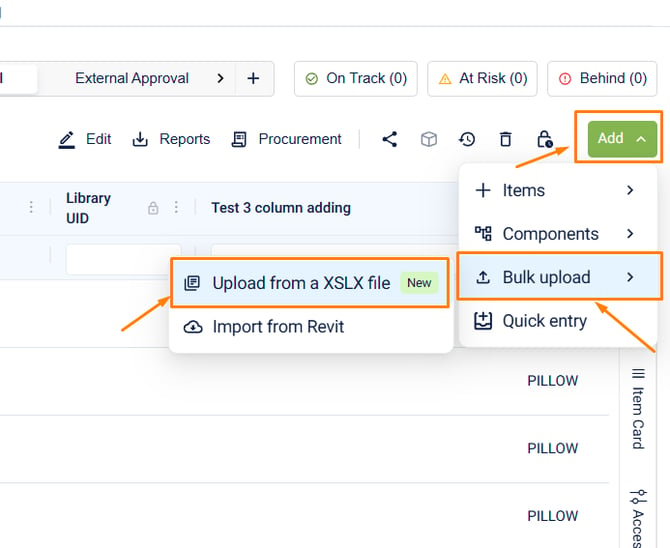
Only files of type .xlsx can be uploaded. Other file types, including .csv, are not supported and will not carry over images.
Before uploading, you'll see a tip screen summarizing the file preparation recommendations above. We recommend reviewing these before continuing.
You can skip this step and upload your file as-is, but cleaning it up first is strongly recommended for the best extraction results.
- Add a Category or Schedule columnFill in the matching Fohlio category on every row. If your file is split into sheets by category, import those sheets one at a time.
- Remove rows that are not part of the data tableDelete title banners, branding rows, validity-date callouts, signature blocks, footnotes, and other non-item content.
- Delete summary, subtotal, and grand total rowsRemoving these manually helps prevent totals from being extracted as products or line items.
- Drop columns you do not plan to importRemove internal-only fields like commission %, internal SKU, supplier notes, and blank "for office use" columns.
- Keep one item per rowMerged cells can be auto-collapsed, but the cleanest result comes from one product or item per row.
- Use one header row, two at mostFohlio can detect parent and child headers, but single-row headers work best. Avoid headers spanning three or more rows.
Step 1: Upload the File
- Drag and drop your file, or select it from your device.
- Make sure your file is under 100 MB. If it's larger, split it into multiple files.
- If your workbook has multiple sheets, you'll be prompted to select which sheet to upload. We recommend using one sheet per upload.
- Use the Include Components toggle if your item list contains components. When this is turned on, Fohlio will attempt to automatically predict which items are components.
- Click Continue to upload the file.
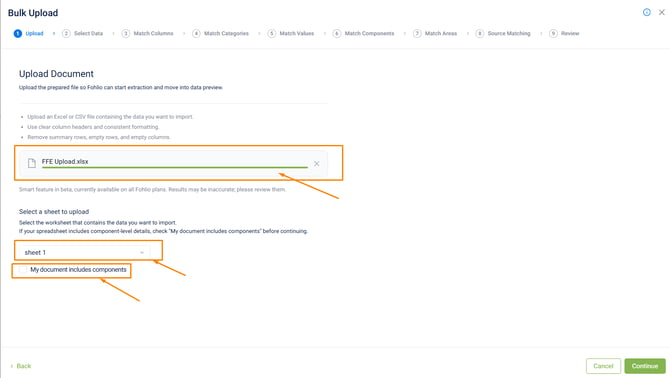
Step 2: Select Data - Header and Rows
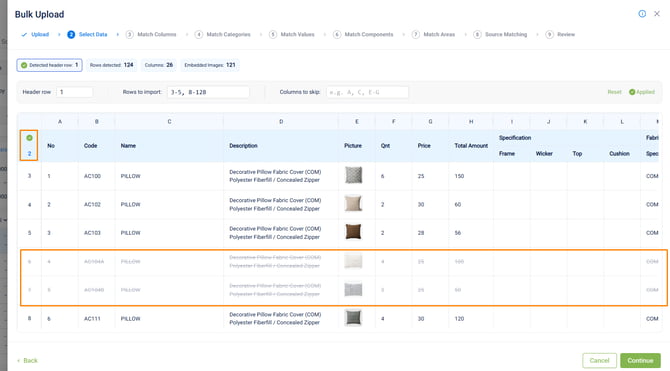
Once your file is uploaded, you'll see a preview of your data.
- Select the header row that will be used for mapping.
- Confirm that your images are displaying correctly in the preview. If images do not appear, they will not be uploaded to Fohlio. Check that the images are not embedded incorrectly in the cell and that the file is saved as .xlsx.
- At the top of the screen, you'll see how many line items were detected.
- Select which rows to include. You can type row numbers directly or click on rows to exclude them. Excluded rows will appear with strikethrough formatting to indicate they will not be imported.
Step 3: Match Columns
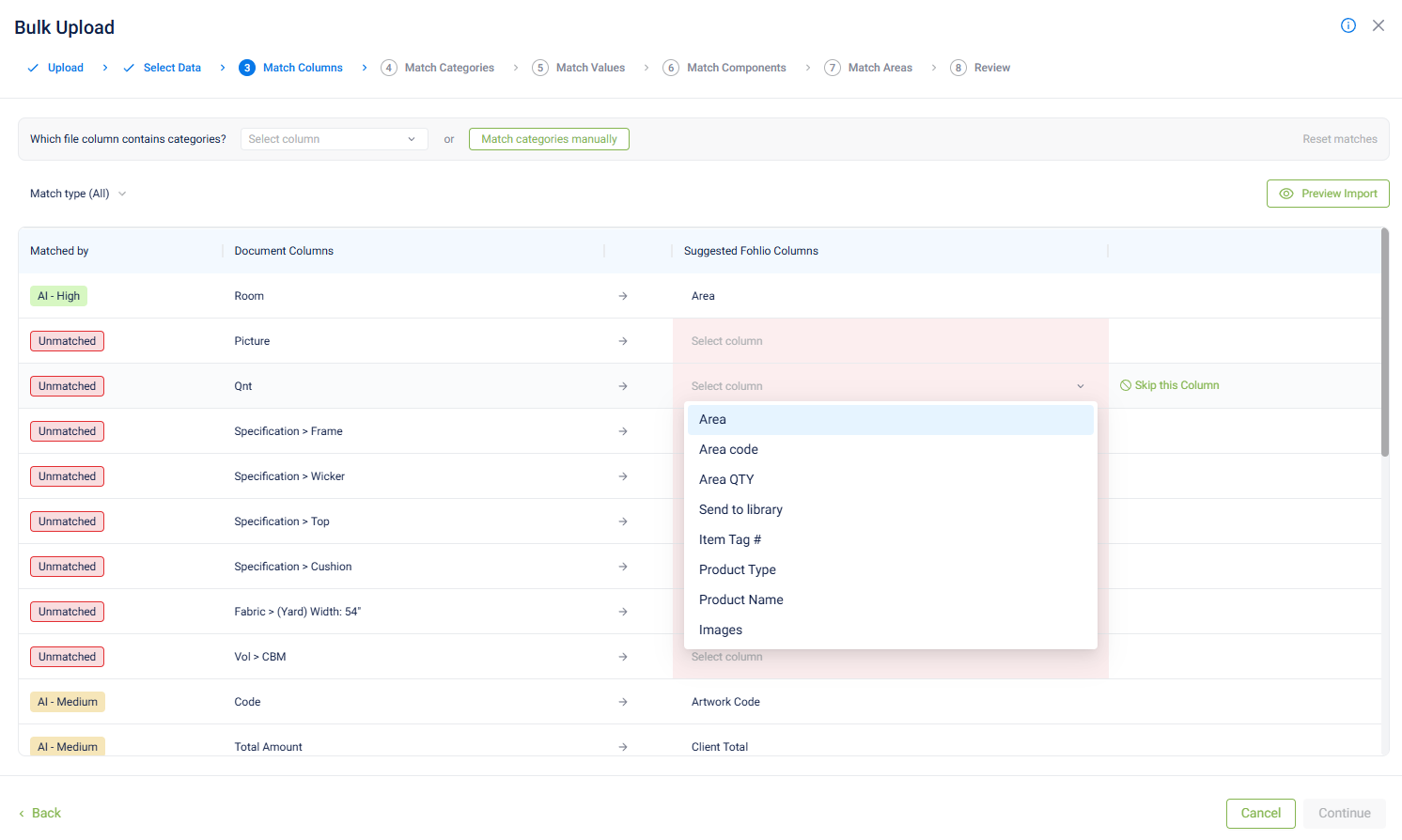
In this step, Fohlio maps your spreadsheet's column headers to fields in Fohlio.
- Review the automatic column mapping. Fohlio will attempt to match each column based on its header.
- For any column that wasn't automatically mapped, select the correct Fohlio field manually, or choose Skip if the column should not be imported.
- Each mapped column shows how it was matched (manually or by AI prediction) along with a confidence level. We recommend reviewing any columns marked as medium confidence to confirm they are mapped correctly.
- Unmatched columns will be at the top of the list with red indicatior, you either map or skip
- Make sure to also select the Category column, we recommend having one if you are uploading to multiple categories at once.
Note: columns can also be excluded here if you did not already remove them from your file.
Step 4: Match Categories
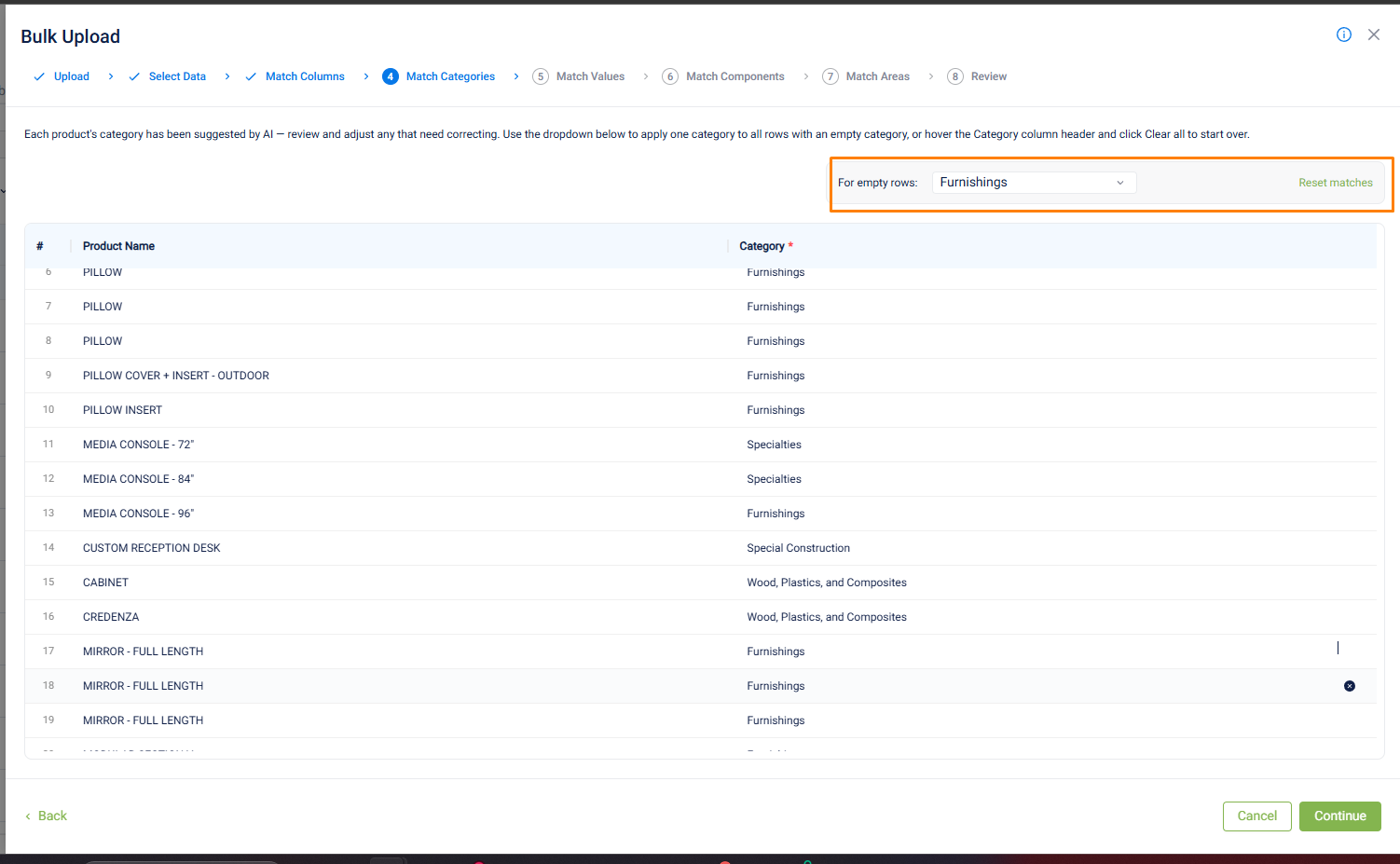
Category mapping is one of the most important steps in the upload process.
- If you have a dedicated category column in your file, make sure it's selected in step 3.
- Map each category value from your file to an existing category in Fohlio. Fohlio will show how many items fall under each value so you can assign them accordingly.
- If you prefer, you can select Match Category Manually to assign categories to individual items instead.
- For any remaining unassigned items, you can select a category to be matched for empty or unmatched ones.
Step 5: Match Values
If any of your mapped columns correspond to a list-type field in Fohlio (such as status), you'll need to map the values from your file to the existing list options in Fohlio.
- For each value, choose to map it to an existing option, set one value for all, skip it, or keep it blank.
[Screenshot placeholder: Value matching screen for list-type columns]
Step 6: Match Components
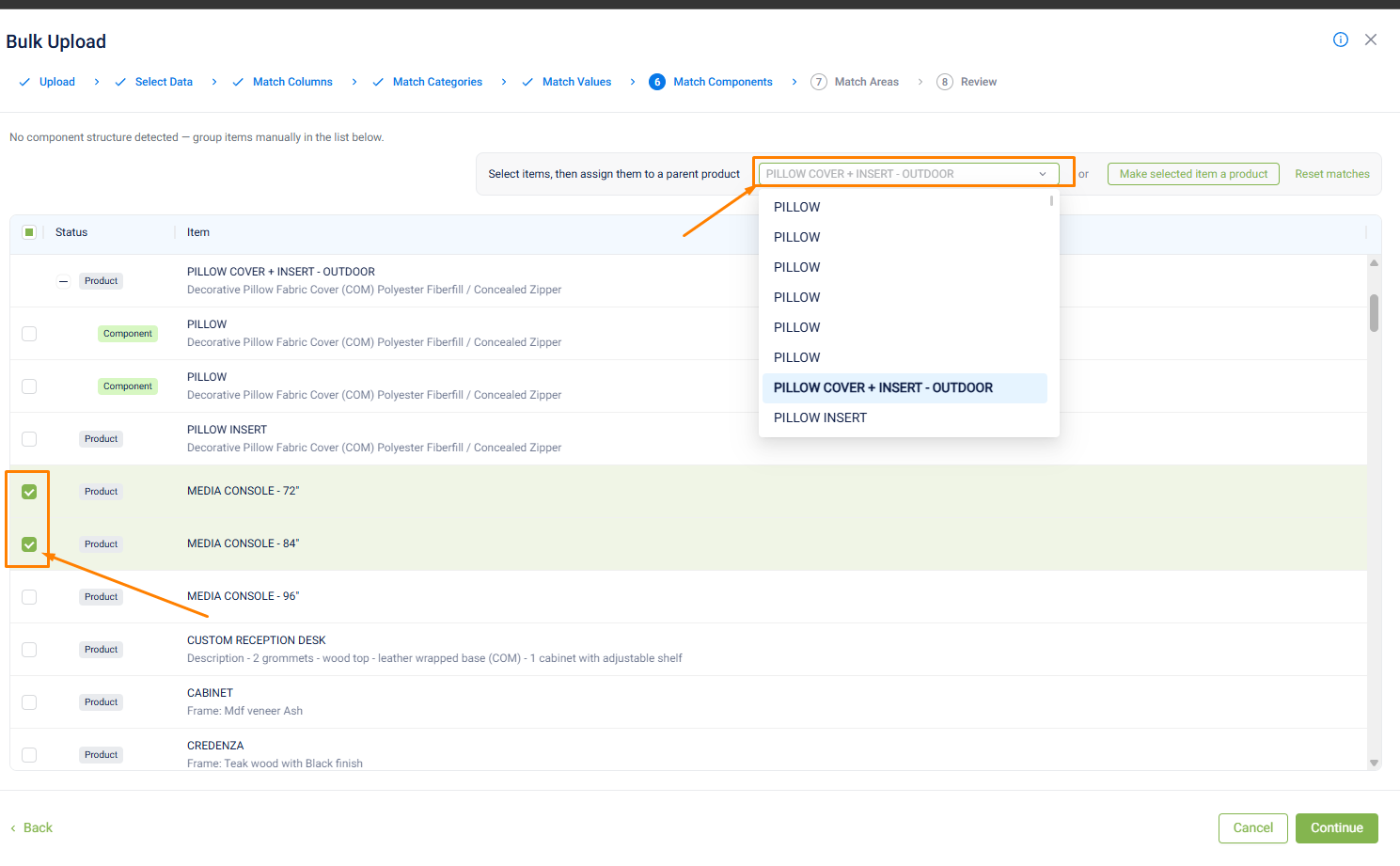
Fohlio will attempt to predict which items are components and which are standalone products.
- Review the predicted components. You can manually mark additional items as components if they were not detected automatically.
- For each component, select which item it belongs to.
- If an item was incorrectly predicted as a component, you can switch it back to a product.
Step 7: Match Areas
Each item can be assigned to only one area at a time. If an item needs to belong to multiple areas, we recommend managing that directly in Fohlio after the upload.
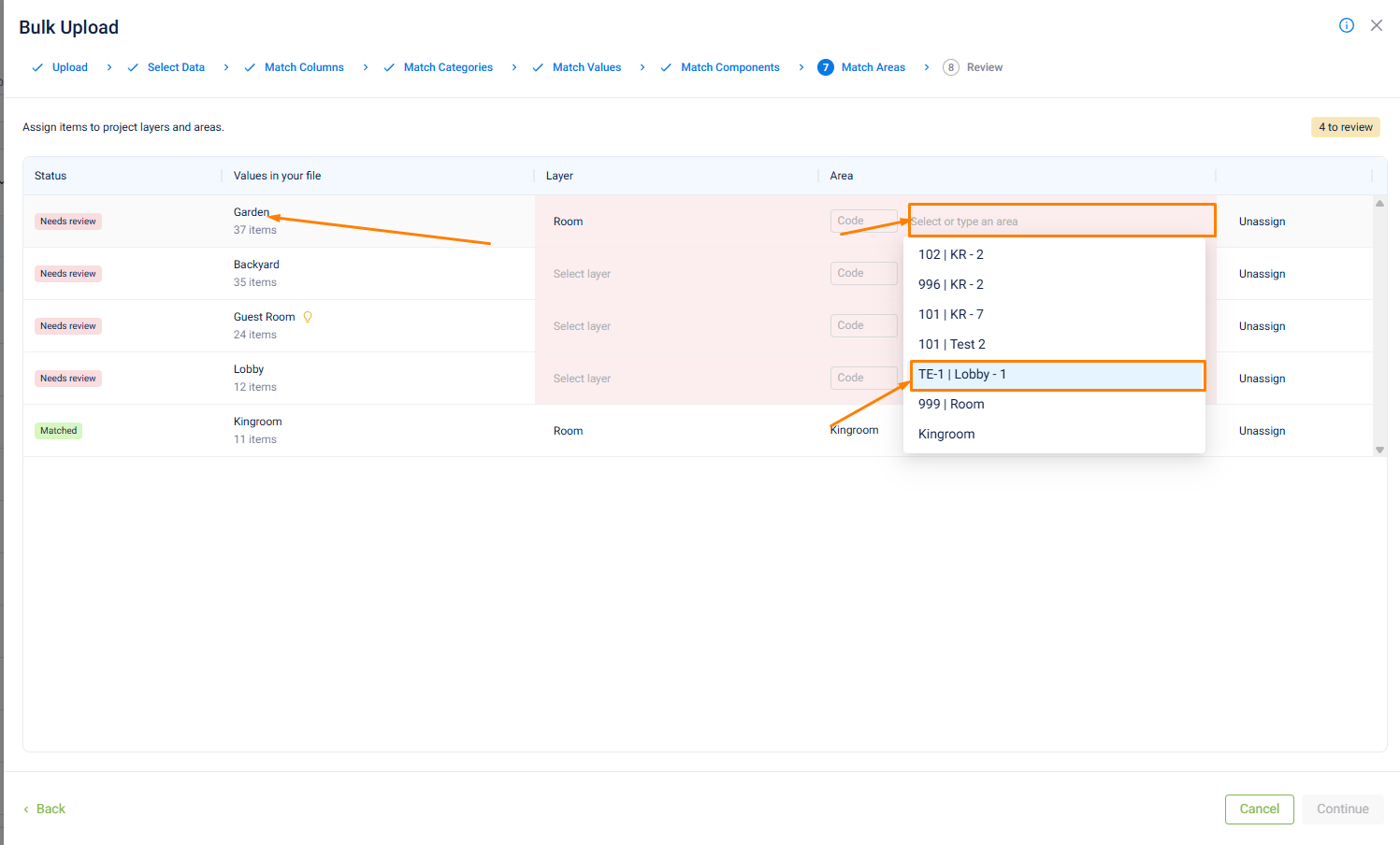
- Based on the column you selected for areas in Step 3 (Match Columns), you'll see the area or room values from your file.
- For each value, choose whether to map it to a Layer or an Area, depending on your project's setup (for example, floor and room).
- Choose to assign items to an existing room or area, leave them unassigned, or create a new room or area if none of your existing ones match.
Important Note: Check the Status of each line, if it says will create means a new area will be created so it's best to double check.
Step 8: Match Suppliers
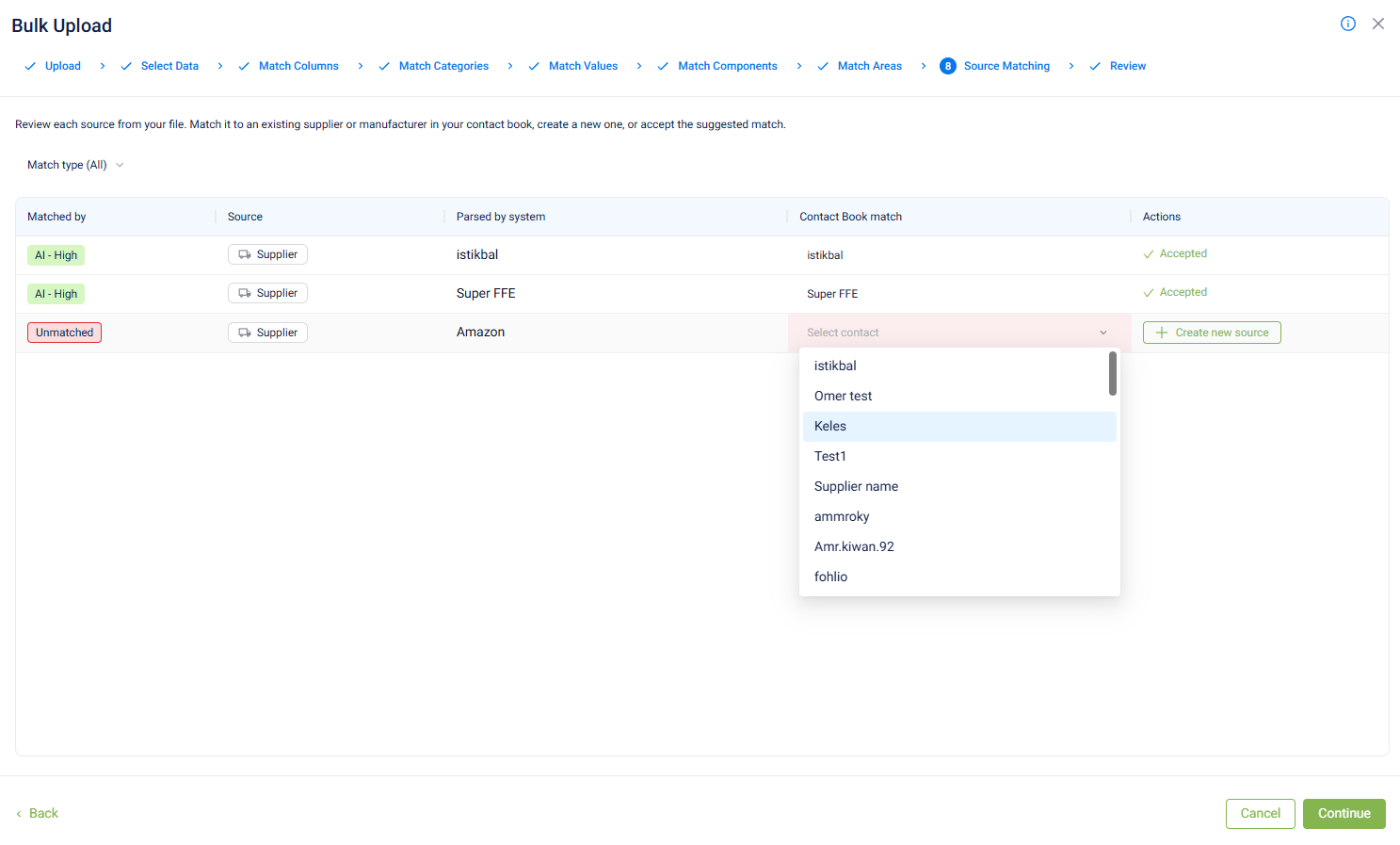
- Review the supplier values from your file. If a supplier already exists in your project, it will be matched automatically.
- If a supplier does not yet exist, you can create a new one during this step.
Step 9: Review and Publish
- Review all mapped values, including area, category, quantity, room, and images, to confirm everything is correct.
- Check that images are mapped to the correct items.
- Review the final summary, which shows the project the items will be added to, the source file, and the number of items and components detected.
- Click Confirm and Publish.
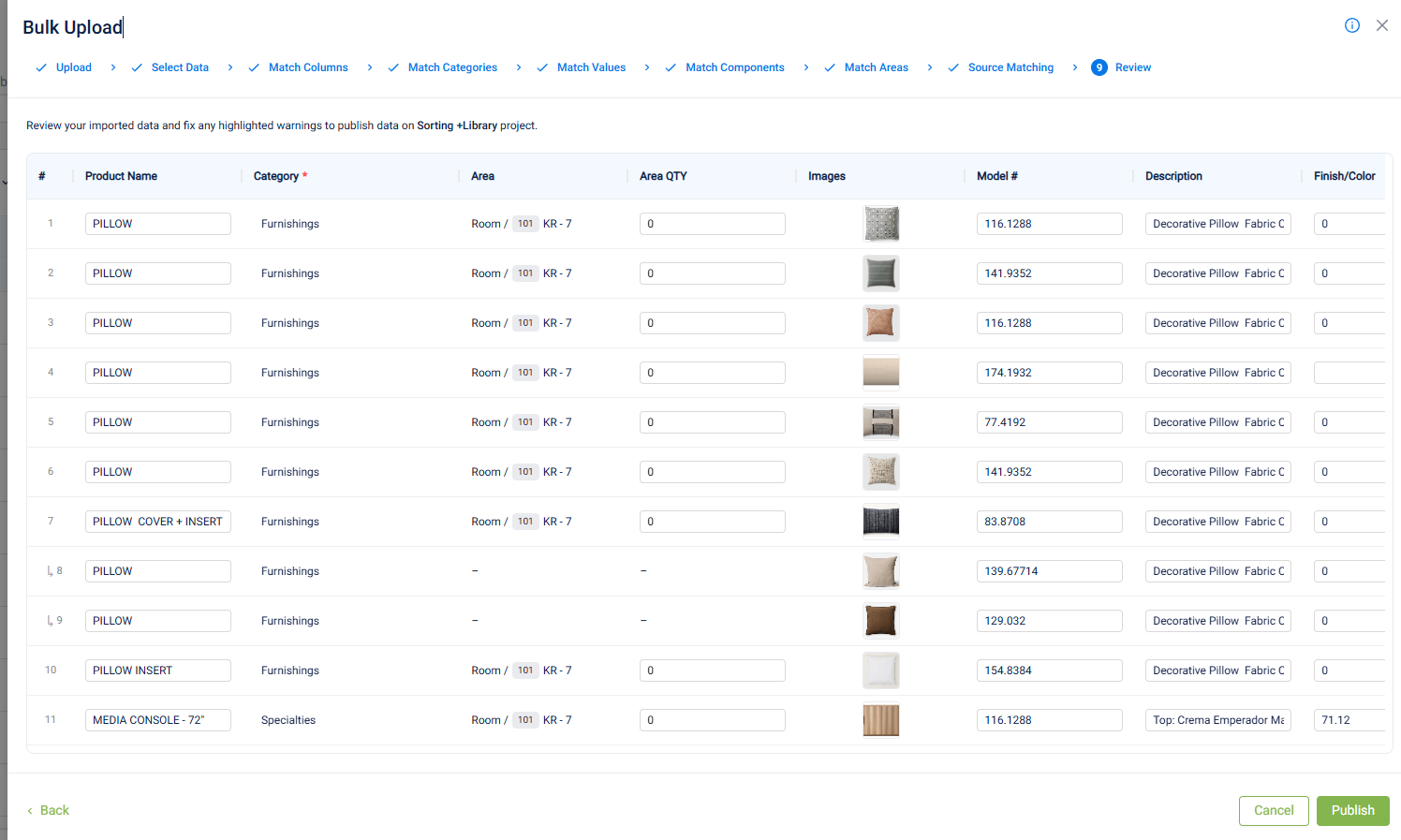
The upload will begin processing. This typically takes one minute to a few minutes, depending on the file size and number of items.
Once complete, your items will appear at the top of your Project Sheet, mapped to the correct areas and categories, with images and all associated information included.
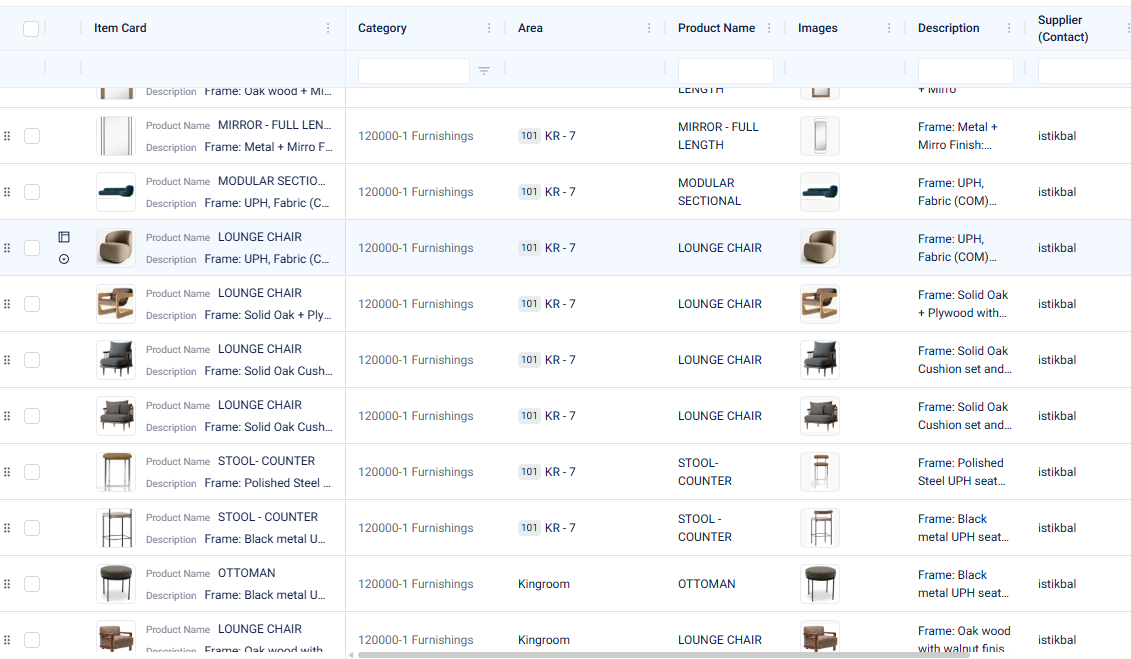
If you have any questions about uploading items from an Excel file, or run into any issues during the process, reach out to to live help through the chat widget in the bottom right corner of your screen. We're happy to help.