
Quick Overview of Financial Updates and Pricing Changes in Fohlio
Overview
Fohlio’s pricing system is designed to give you flexibility, accuracy, and control across a wide range of workflows, from standardized pricing to fully customized fabrication.
With the latest updates, you can:
- Use Standard Pricing to maintain consistent, reusable pricing across projects
- Switch to Component-Based Pricing for custom fabrication and build items dynamically from underlying components
- Configure tax behavior to match your regional setup (e.g. VAT or Sales Tax)
- Override tax settings at the item level and for purchase orders
- Apply tax rates directly to client invoices
- Clearly understand how taxes impact costs, pricing, and margins
These improvements allow you to:
- Adapt pricing to both simple and complex use cases
- Ensure accuracy in cost calculations
- Maintain consistency across projects
- Stay aligned with your margin and financial goals
The Financial Tab
When you open an item's details, you'll find a new Financial tab. This tab contains around 25 pre-built columns with preset formulas and calculations that feed into other parts of Fohlio — including Budget Analysis and procurement documents.
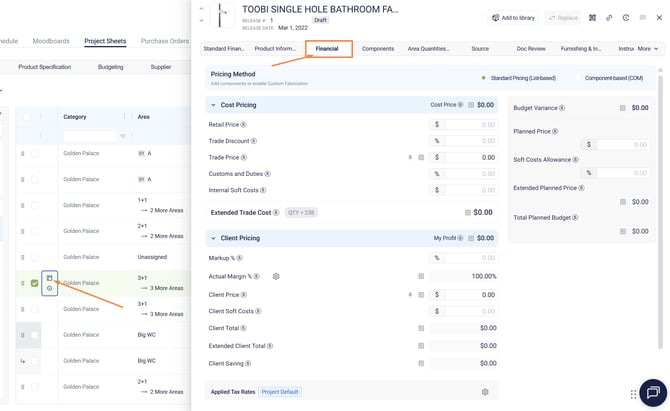
At the top of the tab, you can choose between two pricing methods:
- Standard Pricing
- Component-Based Pricing
💡 Tip: Hover over any field's formula icon to see exactly how that value is being calculated.
Standard Pricing — Estimated / Planned Budgeting
This section is used for early-stage or placeholder items where exact specifications aren't yet confirmed.
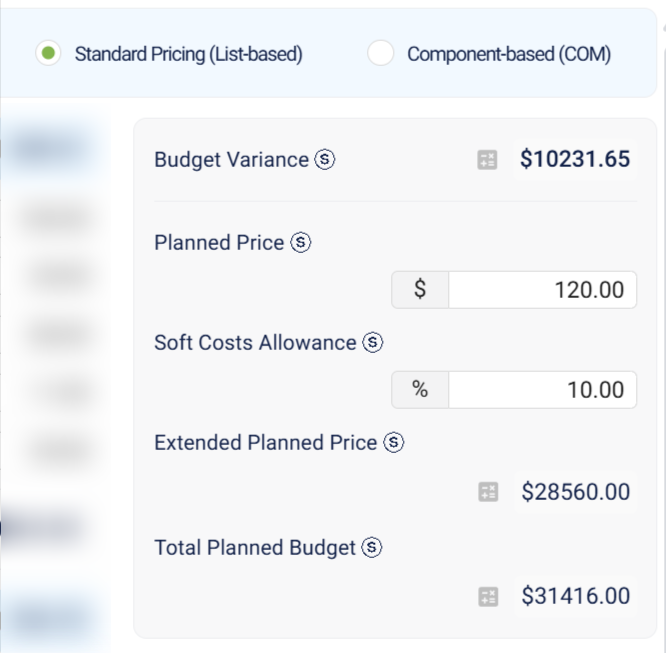
- Planned Price — your rough per-unit estimate
- Soft Cost Allowance — an optional percentage-based buffer
- Extended Planned Price and Total Planned Budget — calculated automatically and available for mapping to Budget Analysis for comparison throughout your project journey
Standard Pricing — Cost Pricing / Purchasing Price
This section captures your real procurement costs once quotes are received.
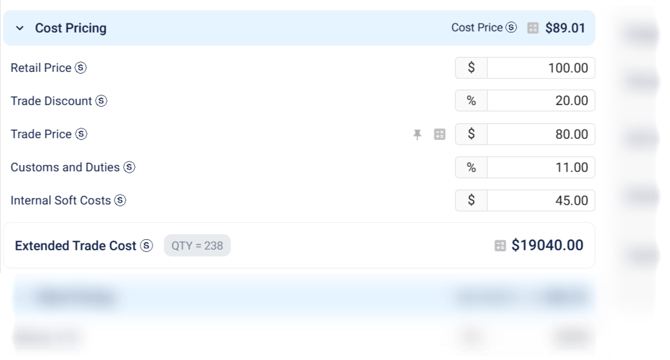
- Retail Price — the supplier's listed or published price (e.g. from their website)
- Trade Discount — any discount applied by the supplier
- Trade Price — the final quoted price (whether received directly, via a code, or through a rebate agreement)
- Customs & Duties (%) — a percentage applied to the total (including quantity) for shipping or import fees
- Internal Cost — a flat value added to the total; similar to Customs & Duties but entered as an absolute amount rather than a percentage
- Extended Cost — quantity × trade price; this is the figure that appears on your Purchase Order
Tax on Purchasing
Based on your project settings, you can apply tax to purchasing costs. This can be configured at the project level or overridden per item. When tax is set (e.g. 20%) and Retail Prices Include Tax is enabled, the system backs tax out of the trade price during calculation — so when a Purchase Order is generated, tax isn't double-counted. It's excluded from the trade price and reapplied correctly on the document.
Standard Pricing — Client Pricing
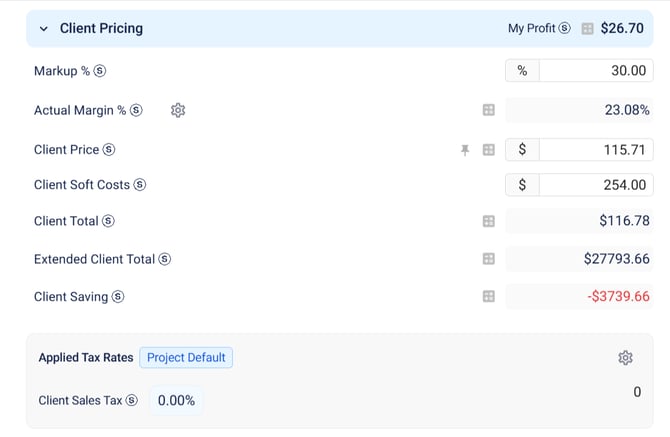
- Markup%— the percentage added on top of cost for your client price
- Actual Margin% — set your target margin at the project level; Fohlio calculates your actual margin based on cost and client price, and flags items that fall short
- Client Price— The unit price you will share with client after markup is applied, you can override this value in case you want to reach your margins
- Client Soft Costs — additional pass-through costs (freight, installation, etc.) you want to show separately from markup
- Client Total — the unit price inclusive of client costs and tax
- Extended Client Total — client total × quantity
- Client Saving — shows the saving versus retail price; most useful in trade-discount-based workflows where the gap between retail and client price represents your value
- Client Sales Tax Amount — the per-unit tax amount shown to the client
Tax Treatment Overview
Tax settings are structured into:
- Project level — via Procurement Settings
- Item-level Overrides
These settings directly impact:
- Cost price
- Client price
- Margins
- Purchase Orders
- Client Invoices
Key Updates to Tax Settings
We've updated tax handling in your settings to give you more control over how taxes are applied in cost calculations.
You'll now find two key toggles that determine how taxes impact your pricing and margins.
1. Retail Prices Include Tax
This setting defines whether supplier prices already include tax.
- ON → Prices are tax-inclusive (common in Europe / VAT)
- OFF → Prices are tax-exclusive (common in the US)
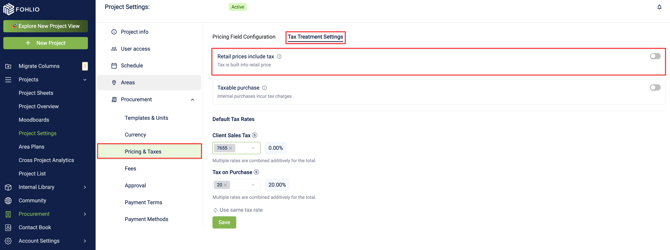
Impact: When enabled, the system removes tax from supplier price to calculate the true cost.
2. Taxable on Purchase
This defines whether your purchases are subject to tax.
- ON → Taxes are added to your cost (not tax-exempt)
- OFF → No tax applied on purchase (tax-exempt)
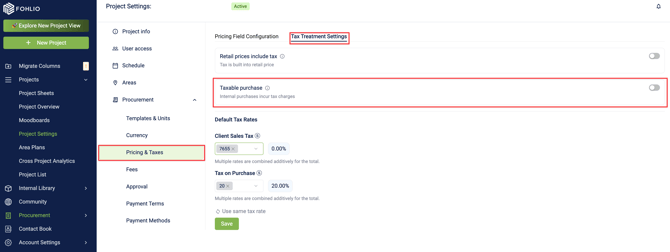
Impact: When enabled, taxes are added to the cost price, increasing the total cost and affecting margins and client pricing.
3. Separate Tax Rates
You can define:
- Client Sales Tax → Applied to client invoices
- Tax on Purchase → Applied to procurement (optional)
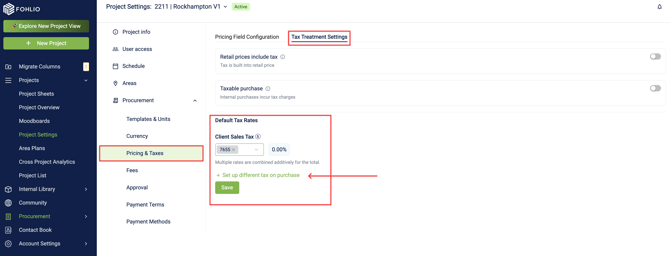
Options:
- Use the same rate for both
- Or define separate rates for more complex scenarios
How Tax Affects Pricing
Tax settings directly impact calculations:
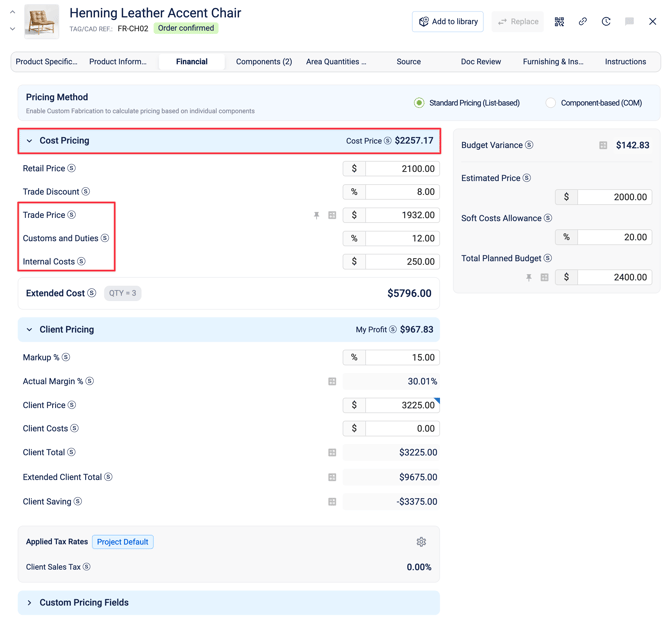
Cost Price is affected by:
- Tax inclusion (retail prices toggle)
- Tax on purchase
- Customs & duties
- Internal costs
Example Logic:
- Tax-inclusive price → tax is deducted → lower cost basis
- Tax applied on purchase → tax added → higher cost basis
Item-Level Overrides
You can override tax settings per item:
- Open item settings
- Switch to Item-level settings
- Adjust:
- Tax toggles
- Tax rates
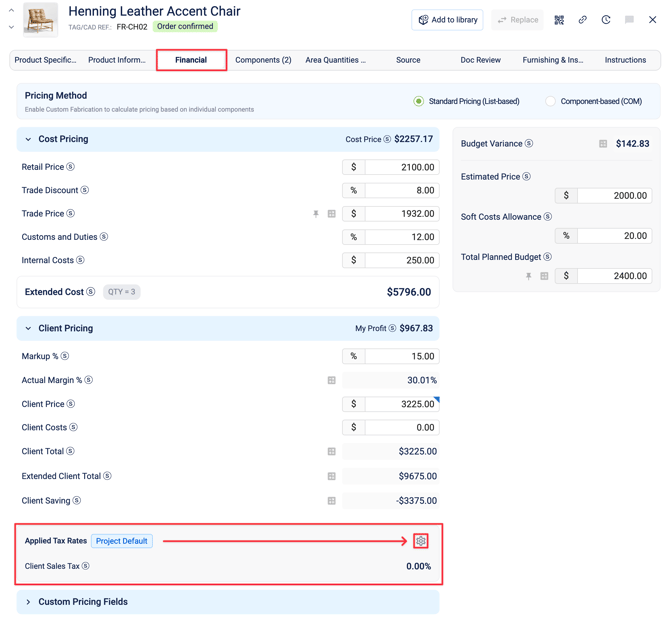
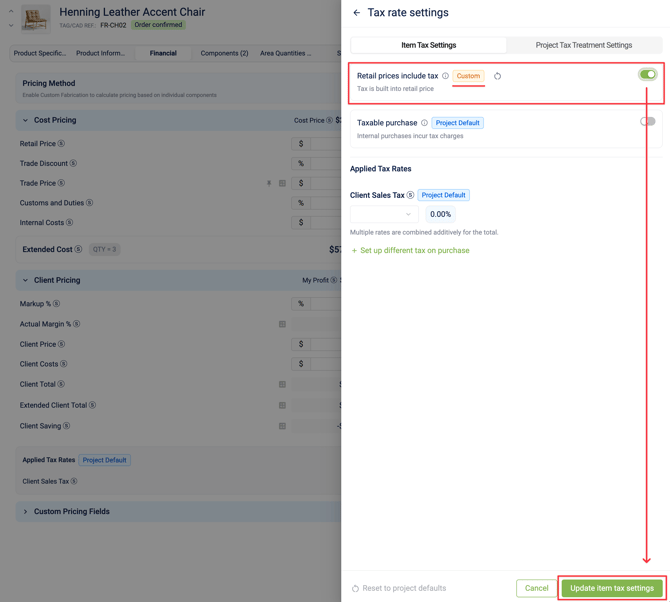
Use case: Different suppliers or regions within the same project.
You can also:
- Reset individual fields to project defaults
- Reset all settings at once
Margin Target Setup
You can define a target margin at the project level to guide your pricing decisions and ensure profitability.
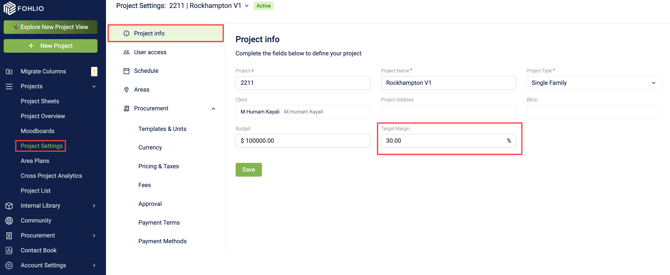
- Set your margin when creating a project, or update it anytime in Project Settings
- Fohlio automatically calculates your actual margin based on cost and client price
When your target isn't met
If your pricing falls below the target margin:
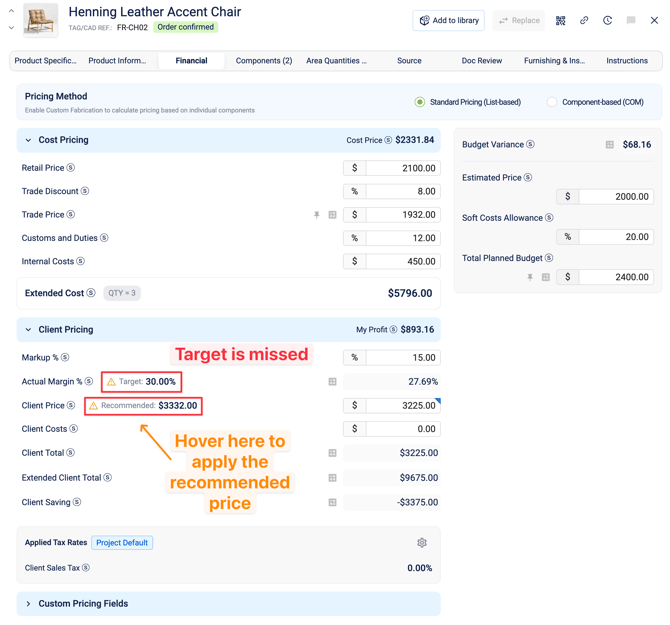
- A warning indicator will appear
- Fohlio will suggest a recommended client price to help you reach your goal. You can apply it by hovering over the icon and pressing "Apply Recommended Price."
When your target is met
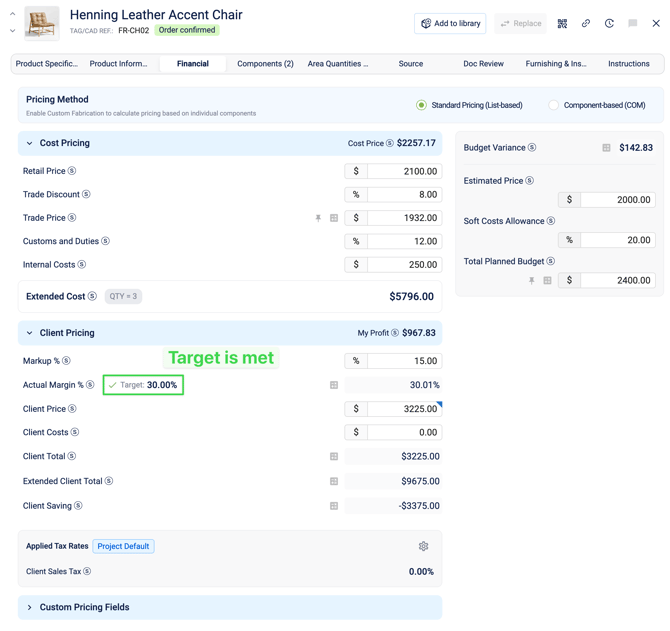
- A check indicator will appear confirming the condition
How to respond
You have full flexibility in how you handle this:
- Accept the recommended price and apply it directly
- Adjust pricing manually
- Reduce your costs — either by:
- Negotiating better supplier discounts
- Optimizing internal costs
Once you reach a suitable price, you can confidently use it when communicating with your client.
Purchase Orders & Client Invoices
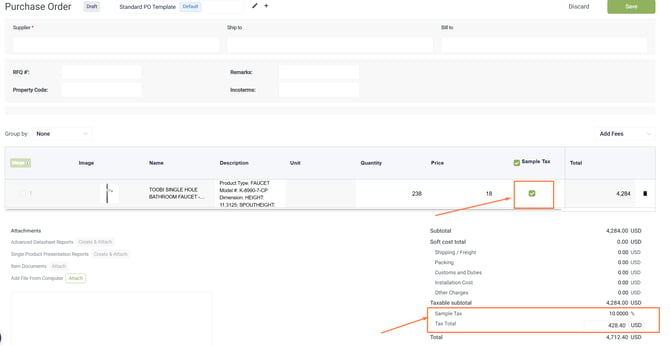
Tax settings are automatically applied to:
- Purchase tax → applied to Purchase Orders
- Client tax → applied to Client Invoices
Item-Level Overrides & Document Behavior
You can override tax settings at the item level, as well as when creating a Purchase Order or Client Invoice.
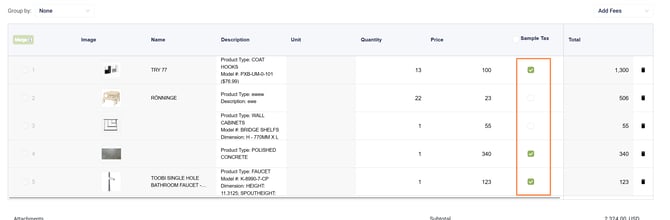
Behaviour when selecting multiple items in case of tax override:
- A single tax rate will be applied across all selected items
- If any item has a custom (overridden) tax setting, that rate will be prioritized
- Otherwise, the project default tax will be used
This ensures consistency within each document while still allowing flexibility at the item level.
Column Customization
Tax fields can be added as columns in tables and renamed.
Example:
- Rename "Sales Tax" → "VAT" for European workflows
Additional Cost Inputs
You can also include:
- Customs & Duties (%)
- Internal Costs
These:
- Apply across item quantities
- Increase cost basis
- Affect final pricing and margins
Best Practices
- Use project defaults for consistency
- Override only when necessary
- Align tax setup with your region (VAT vs Sales Tax)
- Regularly review margin impact after tax changes
Component-Based Pricing (Custom Fabrication)
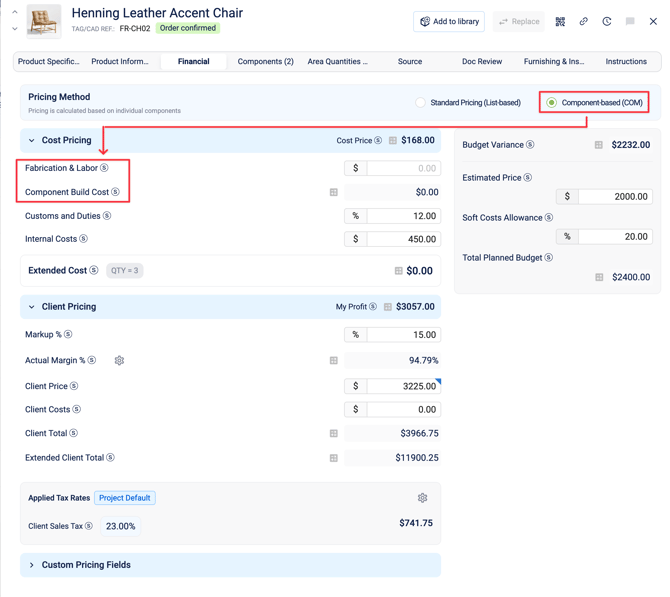
In addition to Standard Pricing, Fohlio also supports Component-Based Pricing, designed specifically for custom fabrication and customer-owned materials.
This allows you to build item pricing dynamically based on its underlying components.
When to Use Component-Based Pricing
Use this method when:
- Items are custom-built or fabricated
- Pricing depends on multiple components or materials
- You need more accurate cost calculations based on real inputs (materials + labor)
How It Works
At the item level, you can switch between:
- Standard Pricing
- Component-Based Pricing
Once you switch to Component-Based Pricing, the pricing structure changes.
What Changes in Component-Based Mode
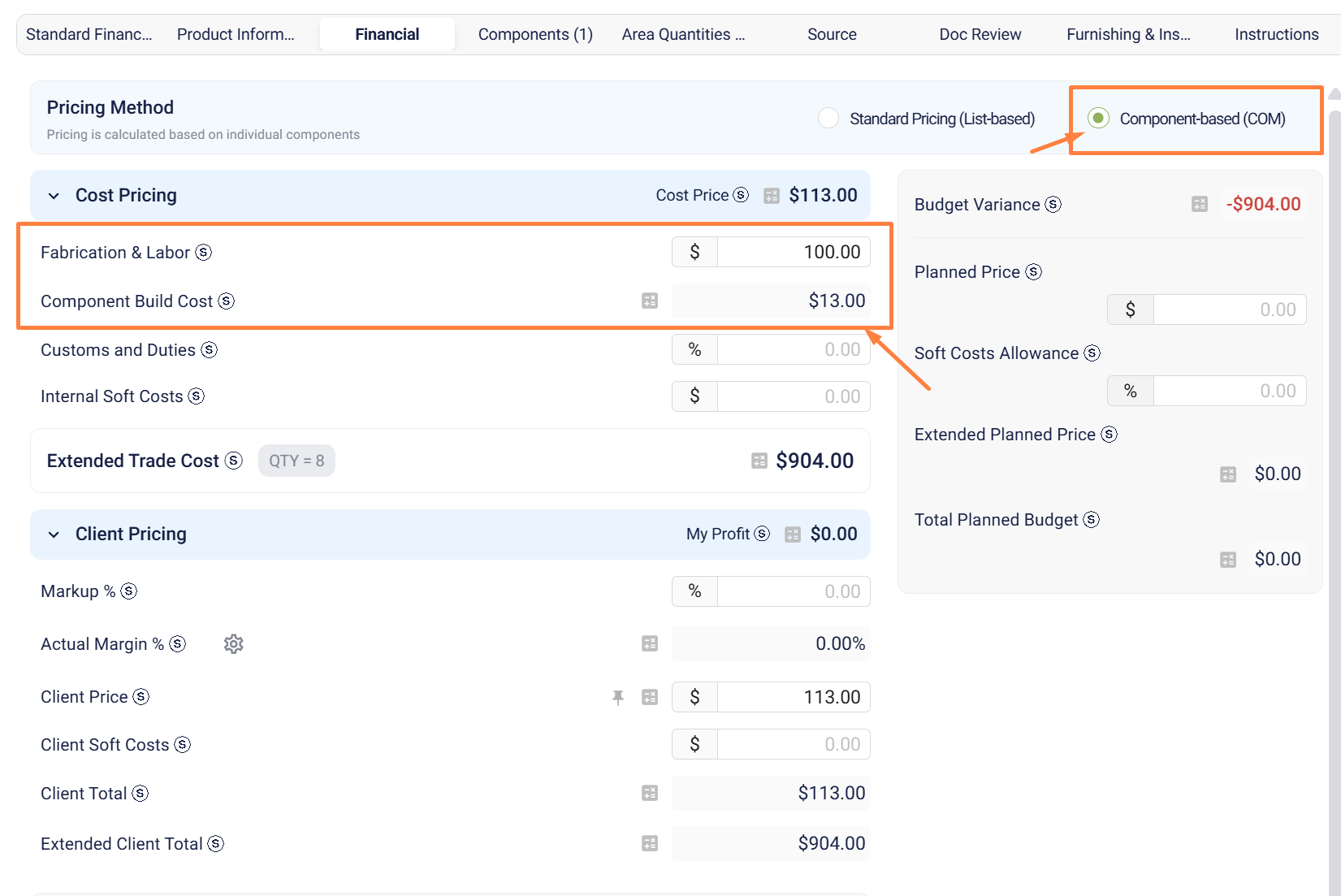
You'll notice additional fields such as:
- Fabrication & Labor
- Component Build Cost
Instead of entering a fixed price, the system calculates pricing based on components.
Component Build Cost Calculation
The Component Build Cost is automatically calculated using:
- The cost price of each component
- The quantity of each component used in the main item
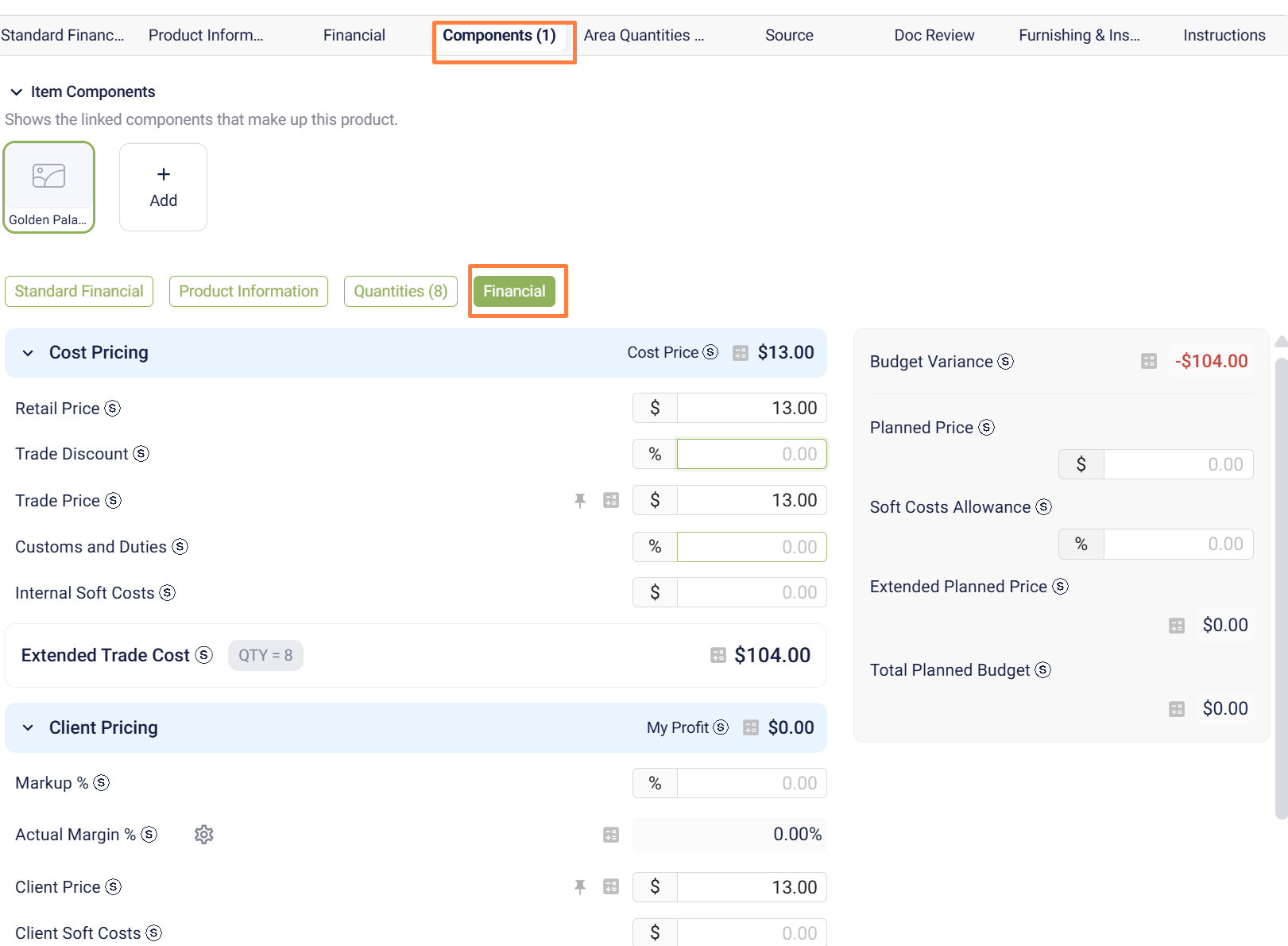
In simple terms:
Component Build Cost = Σ (Component Cost Price × Quantity per Item)
This means:
- Any updates to component pricing will automatically update the total item cost
- You get a dynamic and accurate cost breakdown
Note: In Budget Analysis, only the parent item's value is counted — components are excluded to avoid double-counting.
Adding Fabrication & Labor Costs
In addition to component costs, you can manually add:
- Fabrication & Labor costs
These values are included in the final pricing calculation, giving you a complete view of:
- Material costs (from components)
- Production costs (fabrication + labor)
Key Benefits
- Accurate pricing for custom items
- Automatic cost updates from components
- Better control over fabrication and labor costs
- Ideal for complex or built-to-order items
Summary
Component-Based Pricing is best suited for scenarios where pricing is not fixed, but built from multiple elements. It ensures that your item costs always reflect the latest component and production inputs.