
Overview
Fohlio’s Project Management experience is powered by automated item statuses.
As your team works across Approvals, RFQs, Purchase Orders, and Order Tracking, item statuses update automatically and directly feed into your Project Schedule, progress tracking, and risk indicators.
This means:
- Your project timeline reflects real activity, not manual updates
- Your team gets live visibility into progress and delays
- Your schedule becomes a reliable source of truth across all phases
⚠️ Note on Automation
While many statuses update automatically based on system actions, this process is not yet fully automated.
- Users can still manually update item statuses when needed
- Some stages (such as approvals) currently rely on manual input
- Automation will continue to expand in future updates
💡 We recommend aligning your workflow with system triggers where possible to ensure the most accurate tracking.
🔄 How It Works
Instead of manually updating progress, Fohlio connects your workflows across modules:
- Actions in Approvals, Procurement, and Tracking update item statuses
- Item statuses determine the current phase of each item
- This data feeds directly into the Project Schedule and status indicators (On Track, At Risk, Behind)
🎥 Watch: How Item Status Powers Project Scheduling
This short walkthrough shows how statuses update across modules and how they connect to your project schedule.
🔄 How Status Automation Works
Instead of manually updating item statuses, Fohlio updates them dynamically based on key actions:
- Specification phase → driven by approval workflows
- Procurement phase → driven by RFQs and Purchase Orders
- Fulfillment phase → driven by Order Tracking updates
💡 Think of the status as a reflection of real actions — not just a label.
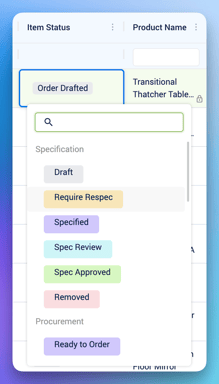
📊 Status Triggers by Phase
🟣 Specification Phase
| Status | Trigger Source | What Happens | Data Behavior |
|---|---|---|---|
| In Review | Approval workflow initiated | Item enters review process | 🔒 Product-related data columns are locked once this status is selected |
| Approved | Approval completed | Item is ready for procurement | 🔒 Product-related data columns are locked |
💡 Note: There is currently no automated system trigger for these statuses. However, once a user selects an approval status, the item data will be locked accordingly. Automation for this stage may be considered in future updates.
🔵 Procurement Phase
| Status | Trigger Source | What Happens | Data Behavior |
|---|---|---|---|
| Quote | RFQ sent | Vendor engagement begins |
🔒 Product and pricing related fields are locked |
| Order (Draft) | PO created (Draft) | Initial order setup | 🔒 Product and pricing related fields are locked |
| Send Order | PO approved / sent | Order officially placed | 🔒 Product and pricing related fields are locked |
| Order Complete | Supplier confirms PO | Procurement finalized | 🔒 Fully locked |
| Archived | PO cancelled | Order closed | 🔒 No further edits |
🟢 Fulfillment Phase
| Status | Trigger Source | What Happens | Data Behavior |
|---|---|---|---|
| Delivered (Partial / Full) | Order Tracking updated | Delivery progress recorded | 🔒 Product and pricing related fields are locked |
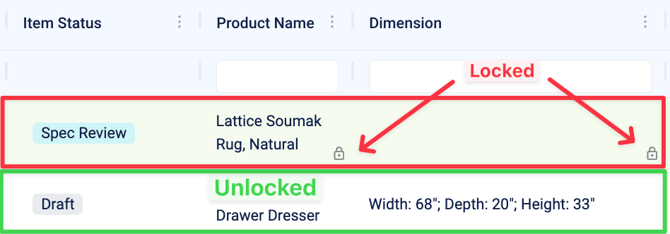
🔒 Understanding Data Locking
As items move through phases, certain fields become restricted to maintain data accuracy.
General Locking Logic
- Before approval → Fully editable
- After approval → Specification related columns are locked
- After PO is sent → Product and pricing related fields are locked
- After confirmation/delivery → tracking only
📸 Screenshot placeholder:
⚙️ Column Locking Settings
Column locking can now be controlled at the project level using a simple toggle.
- Toggle OFF
All columns remain editable — even if items are marked as Spec Approved, Order Approved, or have a Purchase Order created. - Toggle ON
Columns will lock automatically based on item status, following the standard locking logic (e.g. items marked as Order Approved will have their relevant fields locked).
📍 Where to find it:
In the new UI, look for the 🔒 lock icon — the toggle is available directly from there.
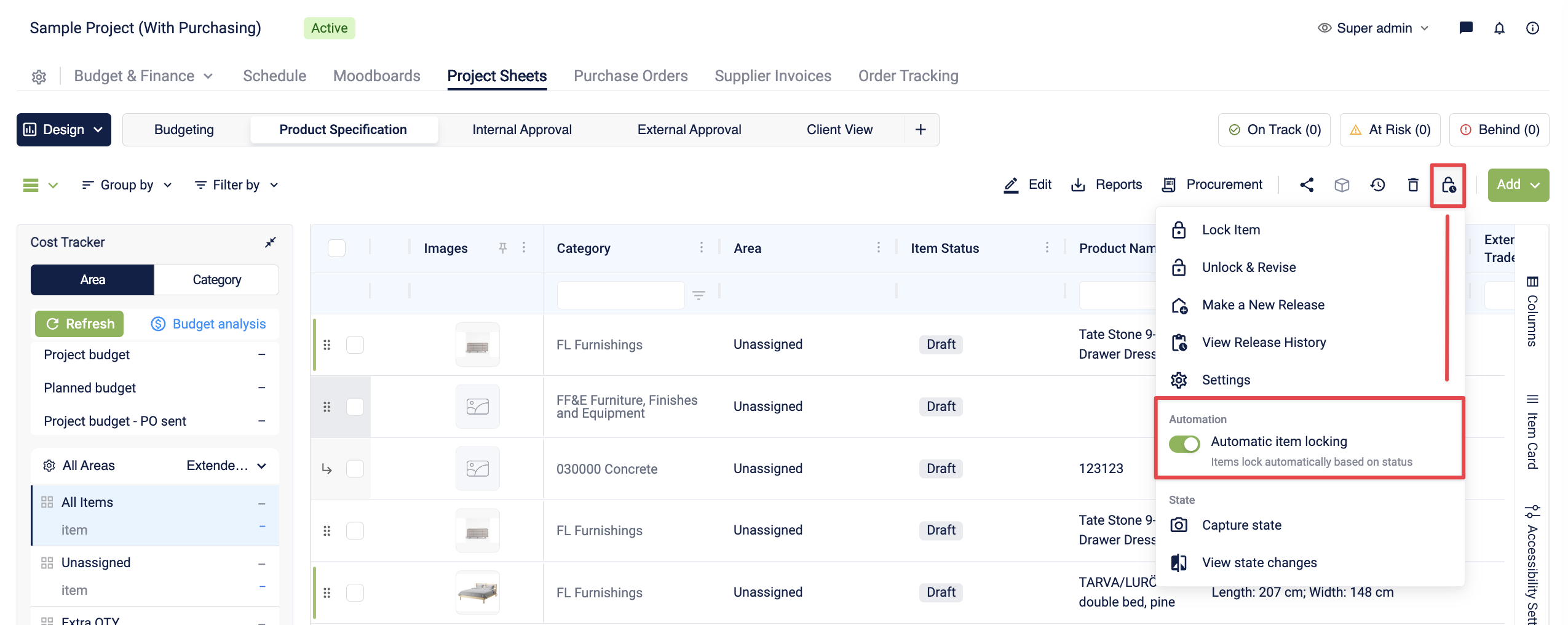
💡 Tip: Enable locking to enforce consistency and prevent unintended changes once key decisions are finalized.
🎥 Learn how to control when columns lock and stay flexible when needed
🔗 Source of Truth by Phase
| Phase | Source of Truth |
|---|---|
| Specification | Approvals |
| Procurement | RFQ & Purchase Orders |
| Fulfillment | Order Tracking |
👉 This helps you know where to take action when updating an item.
🔗 How This Connects to Project Schedule (IMPORTANT)
📅 Item Status → Project Schedule
The Project Schedule uses item statuses to calculate:
- Phase progress
- On Track / At Risk / Behind status
- Timeline health across the project
👉 In simple terms:
Item statuses feed the Schedule.
How it works
- Each item has phase-based dates (Specification, Procurement, Fulfillment, Installation)
- Its current status determines its phase
- The system compares:
- planned dates (from Schedule)
- actual progress (from status)
➡️ This is how Fohlio determines:
- On Track
- At Risk
- Behind
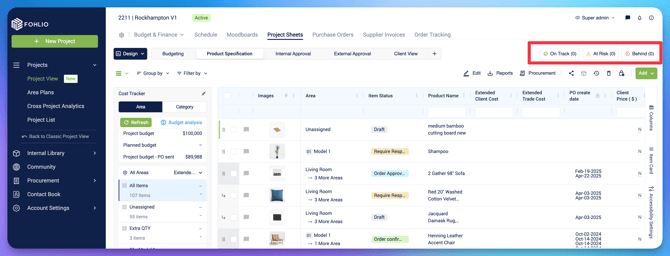
📍 Where to see this:
- Go to Schedule tab (top navigation)
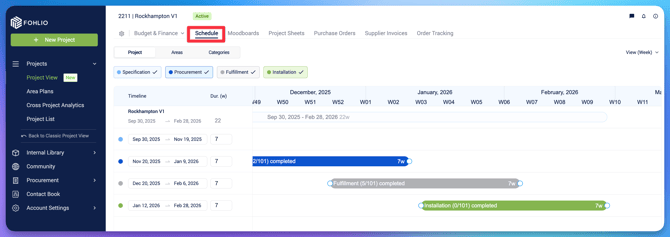
- For current status you can see it in Project Sheets (top navigation)
🎯 Why This Matters
Without status automation:
- Schedule = manual and unreliable
With status automation:
- Schedule = real-time and accurate
👉 This is the key message to highlight.
⚠️ Important Notes
- Status is driven by actions, not just manual input
- Updating RFQs, POs, or deliveries will update status automatically
- Schedule accuracy depends on correct usage of connected modules
✅ Best Practices
- Update items through the correct modules (Approval, RFQ, PO, OT)
- Avoid manual overrides when possible
- Use the Schedule view to monitor progress
- Ensure timelines are properly set at project level
🚀 Summary
Fohlio connects your workflows across modules so that:
- Item statuses update automatically
- Project schedules reflect real progress
- Teams can identify risks early and act faster