
Why Duplicate a Project?
The Duplicate Project feature lets you create a new project based on an existing one.
Instead of setting up categories, user access, dashboards, procurement settings, and templates manually every time, you can duplicate a project that already has the structure you need.
Pro tip 💡: Create a master template project with your preferred setup, then duplicate it whenever you start a new project. This helps keep your workspace consistent and saves time.
🧭 Access the Project List
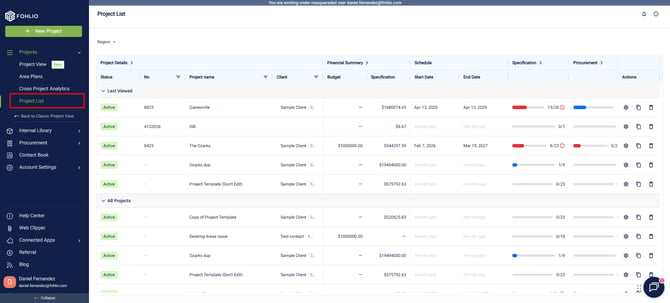
- Open the Main Menu.
- Click Projects.
- Select Project List.
From here, you’ll see:
- Your last five visited projects
- The general project list including active and inactive projects.
🔎 Find the Project You Want to Duplicate
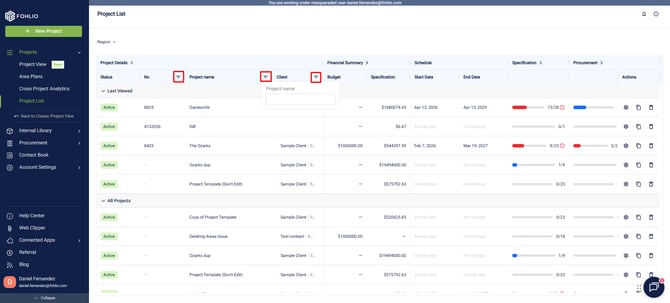
Use the search and filter options to locate the project.
You can search or filter by:
- Project name
- Project number
- Client
Click the strawberry menu icon to open the search options.
📋 Duplicate the Project
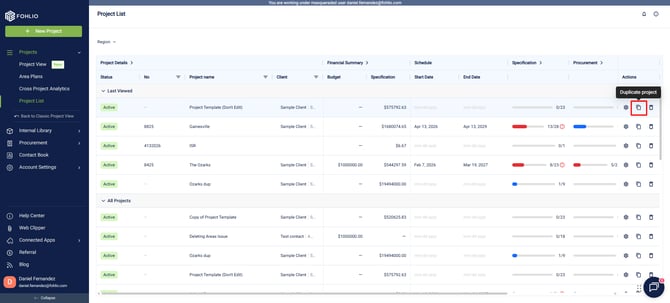
Once you find the project you want to duplicate:
- Look to the left side of the project row.
- Locate the Actions menu.
- Click the Duplicate Project button.
The actions menu includes options to:
- Open Project Settings
- Duplicate the project
- Remove/Delete the project from the workspace
Note: Removing a project makes it inaccessible to team members, so make sure you are selecting the Duplicate Project option.
📝 Name the New Project
After clicking Duplicate Project, a pop-up will appear.
You can enter:
- Project Number — optional
- Project Name — required
Once the project name is added, click Duplicate.
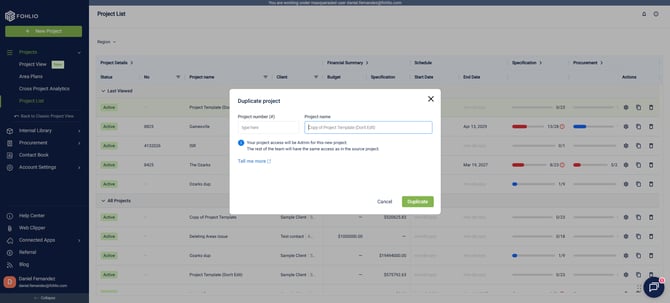
Note: Duplicating a project may take some time depending on the project size. Larger projects with many items and settings may take longer to copy.
What Gets Duplicated?
When you duplicate a project, Fohlio copies the main project setup so you can start from an existing structure.
The duplicated project includes:
- Items in the project
- User access and permission levels
- Areas
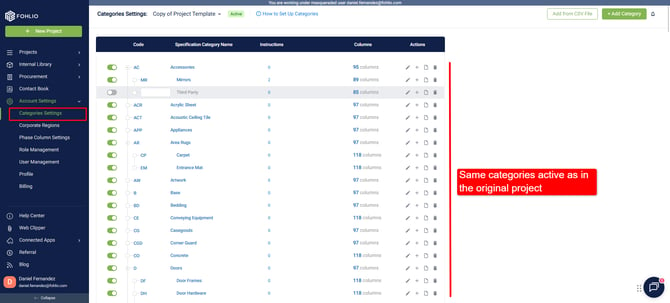
- Active category settings
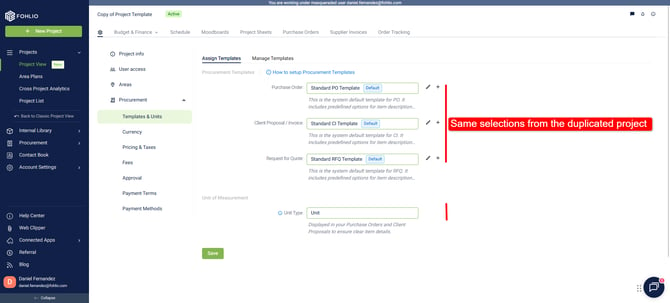
- Procurement settings and templates
- Currency settings
For example, if your original project has specific templates selected for Purchase Orders, Client Proposals, Client Invoices, and RFQs, those same template selections will be carried into the duplicated project.
What Does Not Get Duplicated?
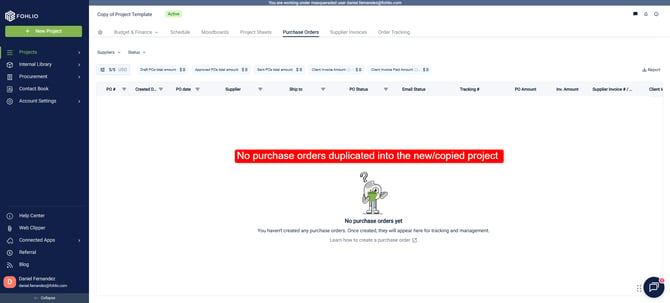
Procurement documents are not duplicated into the new project.
This includes:
- Purchase Orders
- Client Proposals
- Client Invoices
- Supplier Invoices
- Requests for Quotes
For example, if your master template project already has Purchase Orders, the duplicated project will not copy those documents. The new project will start with the same setup, but without existing procurement records.
Recommended Workflow: Use a Master Template Project
A strong way to use this feature is to create a dedicated template project.
Set up the template project with:
- Preferred categories
- User access
- Procurement templates
- Currency settings
- Any reusable items or project structure
Then, duplicate that project whenever you need to start a new one.
This helps your team maintain a consistent setup across projects without repeating the same configuration steps every time.
Wrap-Up
Duplicating a project is a fast way to reuse a project structure that already works for your team.
Use it when you want to:
- Save time setting up new projects
- Keep project settings consistent
- Reuse categories, phases, templates, and permissions
- Start from a master template project
We hope this article was helpful, please reach us via Live Help if you still need assistance.