
Overview
There are two ways to log in to Fohlio:
- Email invitation — you'll receive an email from Fohlio and set up your own password
- SSO (Single Sign-On) — your team uses a centralized login managed by your admin
Option 1: Logging in via Email Invitation
Step 1: Check your invitation email
When you're added to a Fohlio team, you'll receive an email from Fohlio letting you know you've been invited and that you need to get started.
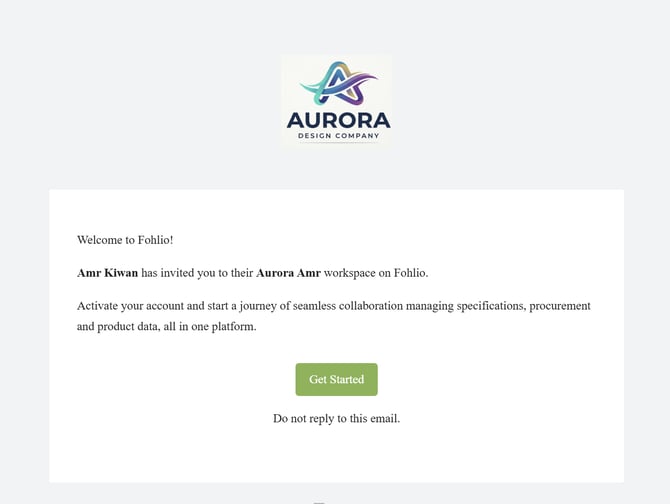
- Click Get Started in the email
Step 2: Set up your password
You'll be redirected to a page where you can create your Fohlio password.
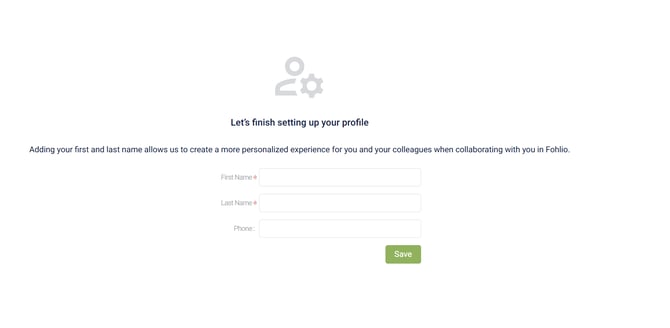
- Enter and confirm your new password
- Click to confirm and save
Step 3: Complete your profile
After setting your password, Fohlio will ask you to fill in a few basic details.
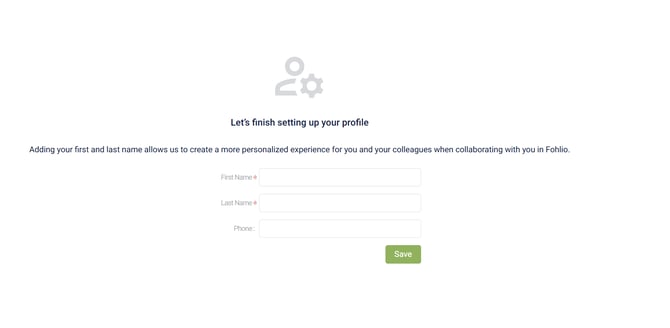
- Enter your first name, last name, and phone number
- Click to continue
Step 4: Access your projects
Once your profile is complete, you'll be redirected to the Project List — the list of projects you've been invited to.
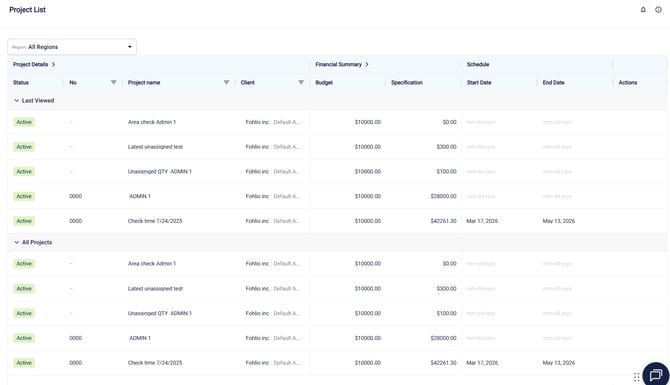
From here, you can start working right away.
Option 2: Logging in via SSO (Single Sign-On)
Some teams require login through a Single Sign-On (SSO) provider. If your team has SSO enabled, you'll see a prompt or error message on the login page indicating that you need to log in using SSO.
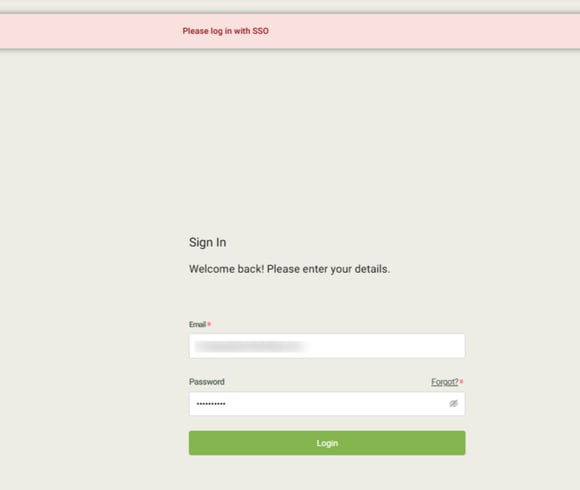
What to do:
- Reach out to your team admin or the person who invited you to Fohlio
- They will guide you through setting up your SSO login credentials
Note: SSO configuration is managed at the team level. Contact your admin if you need help getting access.
We hope this article was helpful. Please rate the article and reach us via Live Help if you still need assistance.